FIXONIC
SellSavedMy Fixonic
Official iFixit API visual reference

Acer Chromebook CB3-131-C3KD Track pad Replacement

Use this guide to replace the trackpad in your...

iFixit Library Acer Chromebook CB3-131-C3KD Moderate 5 - 8 minutes Guide 100030
Open the authorised source
Licensed iFixit integration

This attributed iFixit guide is displayed through Fixonic's recorded commercial API permission. iFixit remains the independent source and author of the procedure.

Guide overview

Before you begin

Use this guide to replace the trackpad in your device.

Step 1

Repair step

  • Make sure you turn off the laptop before starting.
  • Unscrew and remove the (11) eleven 4mm J0 head screws on the underside of the laptop using the JIS #0 screwdriver.
Step 2

Repair step

  • Use the plastic opening tool to remove the back cover.
  • Be careful not to damage the ribbon cable connecting the back cover to the laptop.
Step 3

Repair step

  • Unscrew the (2) two 3mm J0 Phillips head screws that hold the battery in place.
Step 4

Repair step

  • Disconnect the battery from the motherboard.
  • Carefully disconnect the cable parallel to the board, not at an angle. Otherwise, you could damage the port.
Step 5

Repair step

  • Carefully lift the battery from one side, and then lift it out of the laptop.
Step 6

Repair step

  • Remove the (3) three 7.0mm screws using the J0 screwdriver head.
Step 7

Repair step

  • Unlock the latches on both ends of the ribbon cable, and pull to detach.
  • The ribbon cable will still be attached to the tape.
Step 8

Repair step

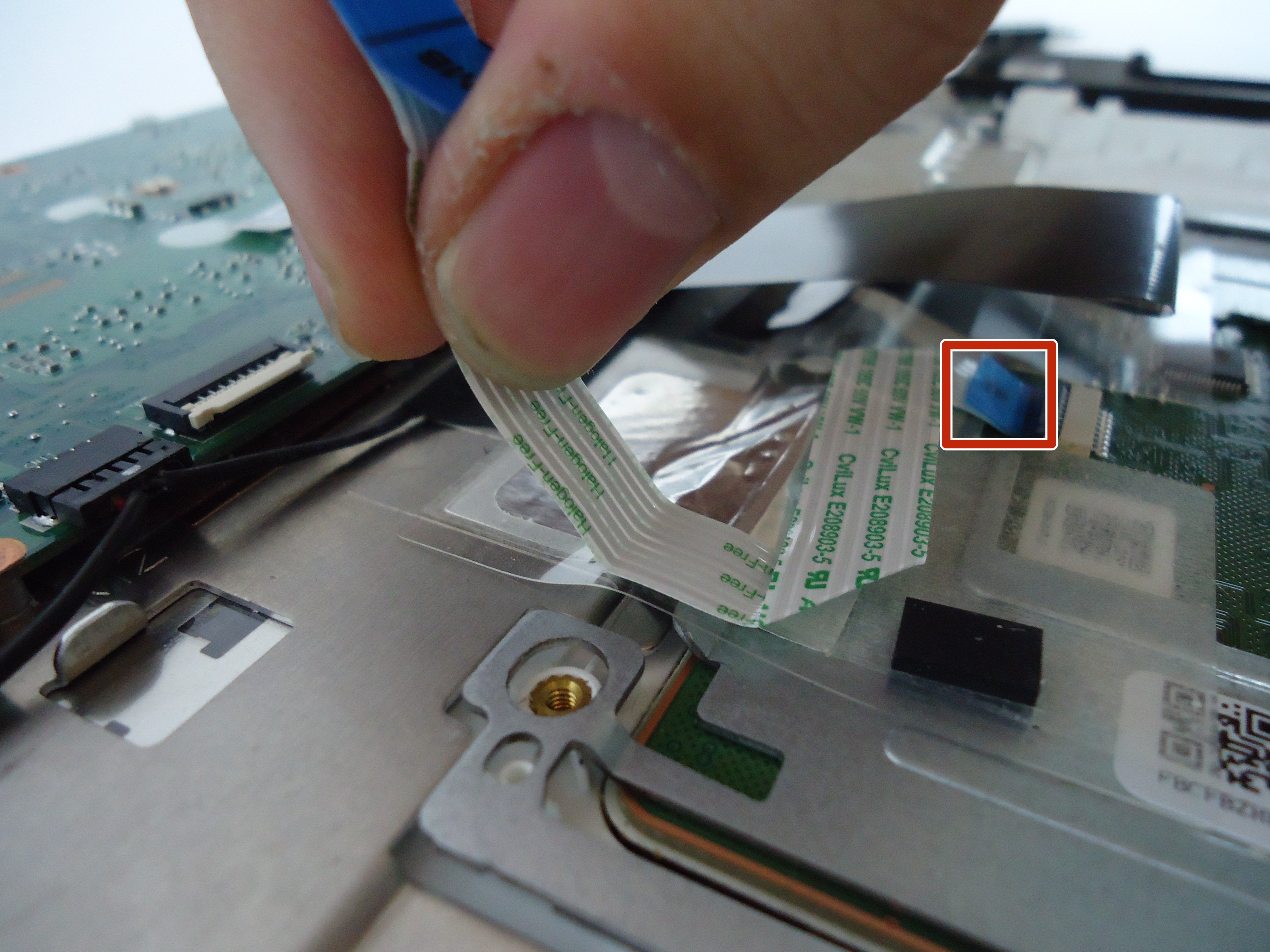
  • Peel the tape that is on top of the trackpad.
Step 9

Repair step

  • Lift the trackpad out of the Chromebook.