FIXONIC
SellSavedMy Fixonic
Official iFixit API visual reference

Lenovo Ideapad S415 Touch RAM Replacement

If your laptop is running out of space and...

iFixit Library Lenovo Ideapad S415 Touch Moderate 10 - 20 minutes Guide 120168
Open the authorised source
Licensed iFixit integration

This attributed iFixit guide is displayed through Fixonic's recorded commercial API permission. iFixit remains the independent source and author of the procedure.

Guide overview

Before you begin

If your laptop is running out of space and starts getting slow, there may be a problem with your RAM. This guide will help replace the RAM in your laptop. In order to replace the RAM you will first need to remove the battery. Make sure you have a Phillips #0 screw bit or screwdriver on hand. Be careful when dealing with the RAM. When removing it, take extra care not to touch the yellow strip on top of the RAM because the oil from fingers can damage the piece.

Step 1

Repair step

  • Flip laptop over bottom side up.
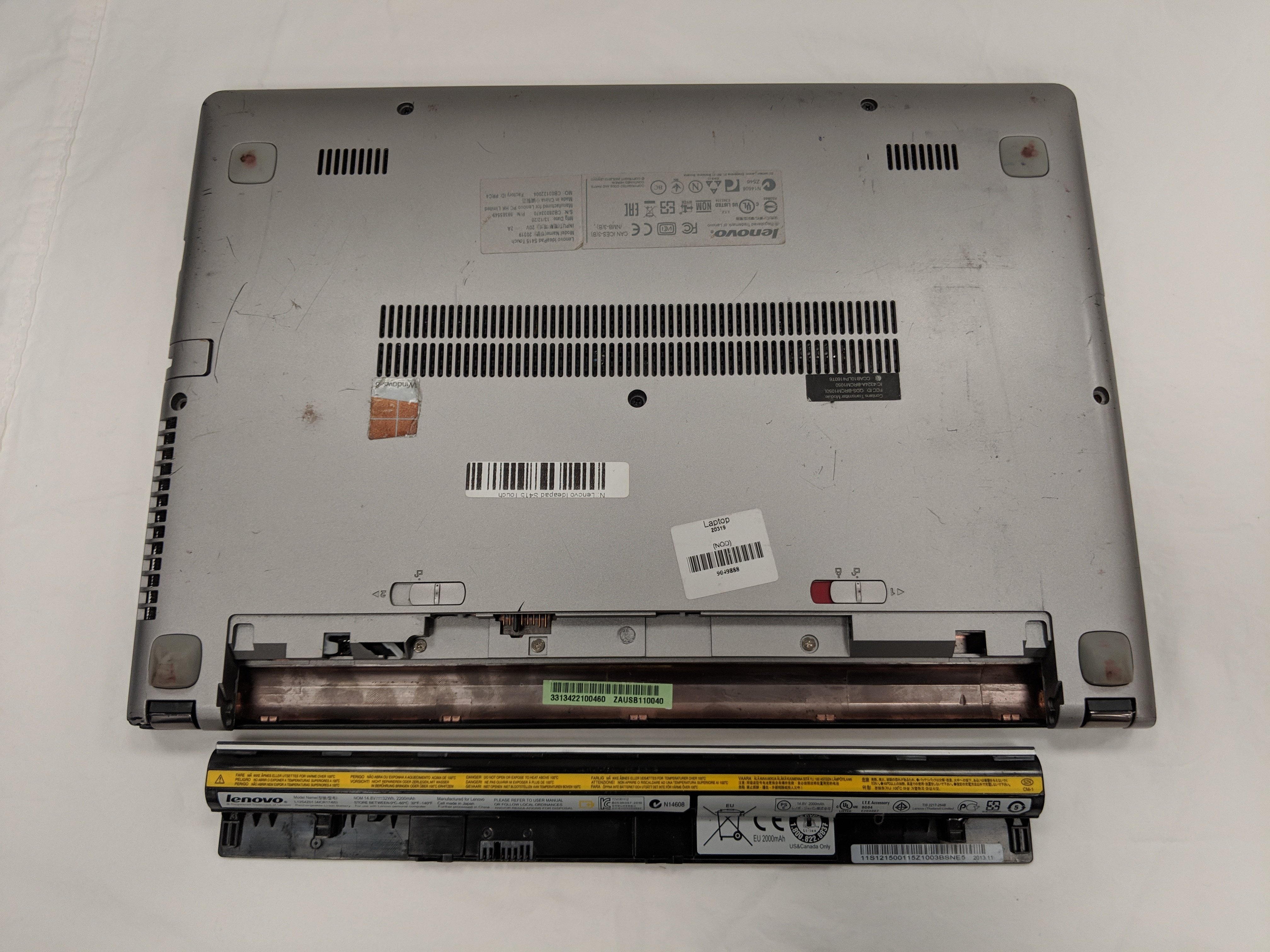
  • Locate the two battery release switches.
Step 2

Repair step

  • Use your finger to push the battery release switch labeled "1." The red indicates that the switch is unlocked.
Step 3

Repair step

  • Use your finger to push the battery switch labeled "2."
Step 4

Repair step

  • Once both switches are unlocked, the battery will release.
Step 5

Repair step

  • When replacing the battery make sure the two protruding holes line up with the slot.
  • Carefully remove the battery.
Step 6

Repair step

  • Locate the five 6mm black screws on the bottom.
  • Using a Phillips #0 screwdriver, remove all five screws.
Step 7

Repair step

  • Locate the three 4mm silver screws on the bottom area where the battery was removed.
  • Use the Phillips #0 screwdriver to remove all three screws.
Step 8

Repair step

  • Locate the four rubber stoppers near each corner of the laptop.
  • Open up the stoppers by lifting each with your hands.
Step 9

Repair step

  • Under each of the four stoppers, there will be a 6mm screw.
  • Use the Phillips #0 screwdriver to remove all four screws.
Step 10

Repair step

  • Carefully open up the laptop to reveal the internal components.
Step 11

Repair step

  • Locate the RAM.
  • Using your hands gently push up on the two silver clips located on both ends of the RAM.
  • The RAM will spring out. Gently pull it out of the slot.
  • Do not touch the top yellow part of the RAM as this will cause damage.