FIXONIC
SellSavedMy Fixonic
Official iFixit API visual reference

Lenovo IdeaPad S210 Touch System Memory / RAM Replacement

This guide will explain how to replace your...

iFixit Library Lenovo IdeaPad S210 Touch Moderate 5 minutes Guide 125006
Open the authorised source
Licensed iFixit integration

This attributed iFixit guide is displayed through Fixonic's recorded commercial API permission. iFixit remains the independent source and author of the procedure.

Guide overview

Before you begin

This guide will explain how to replace your System Memory (also known as RAM) for the Lenovo IdeaPad S210 Touch. Faulty RAM modules may cause reduced system stability and performance. Replacing the RAM modules can not only increase system stability but provide performance you didnt have prior to the replacement. Please take note that you will need DDR3 SDRAM modules to function with the laptop.

Step 1

Repair step

  • Ensure your device is unplugged and shut down.
  • Place the laptop down with the cooling vents facing upwards.
Step 2

Repair step

  • Use your finger to slide the latch towards the unlocked position (away from the other latch). If done correctly you will see red.
  • Slide the second latch to the unlocked position while gently pulling the battery away from the laptop.
Step 3

Repair step

  • Using the #0 Phillips screwdriver, remove the nine 4mm screws on the back panel.
Step 4

Repair step

  • Gently pull the two rubber feet closest to battery away from the device. Using a #0 Phillips screwdriver, remove the 5mm screw under each rubber foot.
Step 5

Repair step

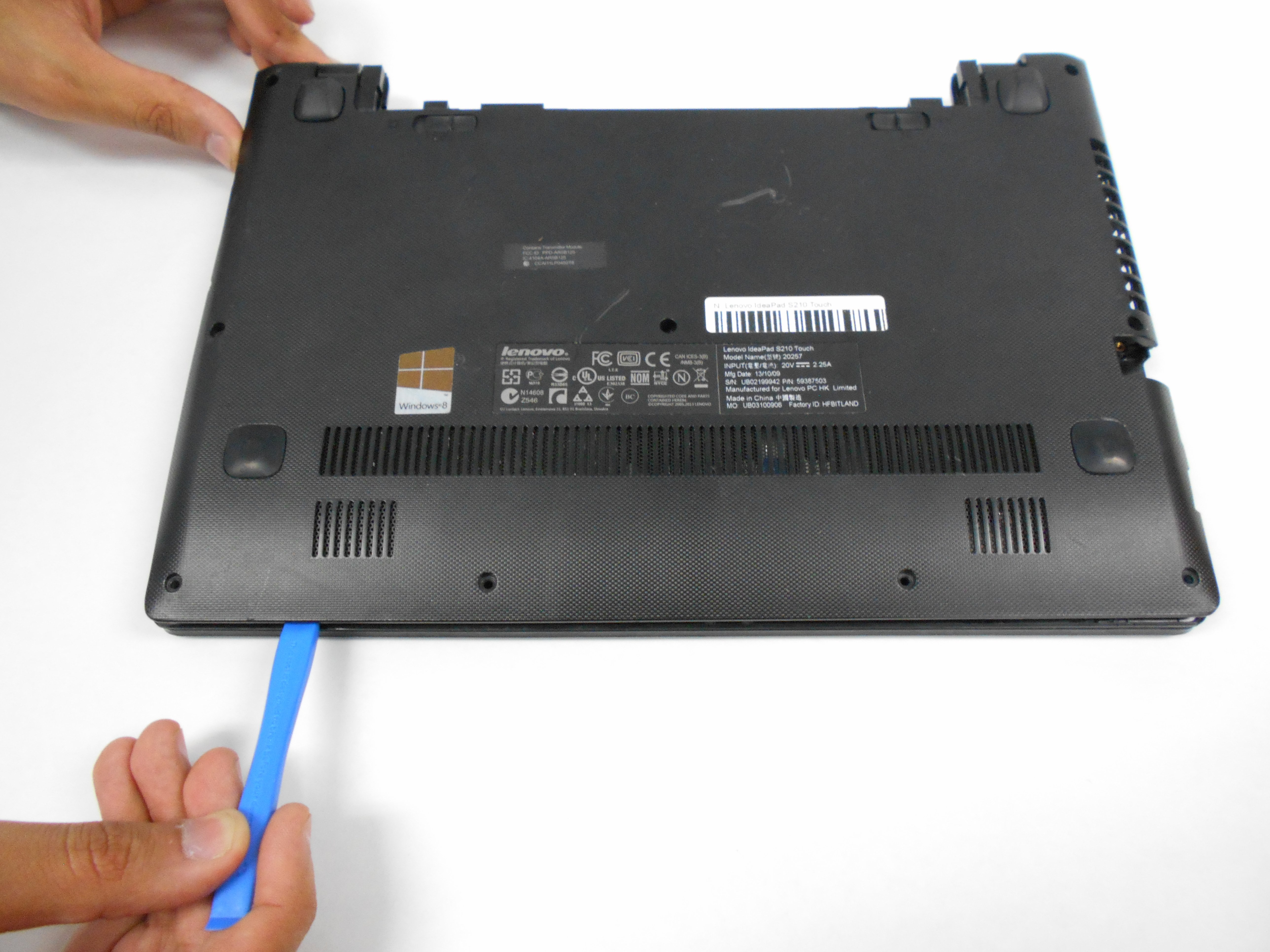
  • Slowly begin working your plastic opening tool along the panel to undo the latches around the laptop.
Step 6

Repair step

  • Release the RAM from the motherboard by pressing the two locking latches away from each other.
Step 7

Repair step

  • After the latches are unlocked, the RAM module will shift so it sits at an angle. Gently pull RAM module at this angle to free it from the socket.
  • When reinstalling, be sure to align the notch on the RAM stick with the slot on your motherboard. Improper installation may cause damage to the motherboard or RAM.