FIXONIC
SellSavedMy Fixonic
Official iFixit API visual reference

Lenovo ThinkPad X1 Yoga Trackpad Replacement

The trackpad of a laptop is essential to scroll...

iFixit Library Lenovo ThinkPad X1 Yoga Easy 8 minutes Guide 131714
Open the authorised source
Licensed iFixit integration

This attributed iFixit guide is displayed through Fixonic's recorded commercial API permission. iFixit remains the independent source and author of the procedure.

Guide overview

Before you begin

The trackpad of a laptop is essential to scroll and move the cursor. If you find that your cursor is not properly tracking your movements, you may need to replace the trackpad of your device. Please use this guide to remove and replace the trackpad of your laptop.

Step 1

Repair step

  • Be sure to power off and unplug your device before you begin your repair.
  • Flip the computer over so the bottom is facing up.
  • Remove nine 4mm Phillips #1 screws from the bottom of the computer.
  • Use an iFixit opening tool to pry the back cover off of the laptop.
Step 2

Repair step

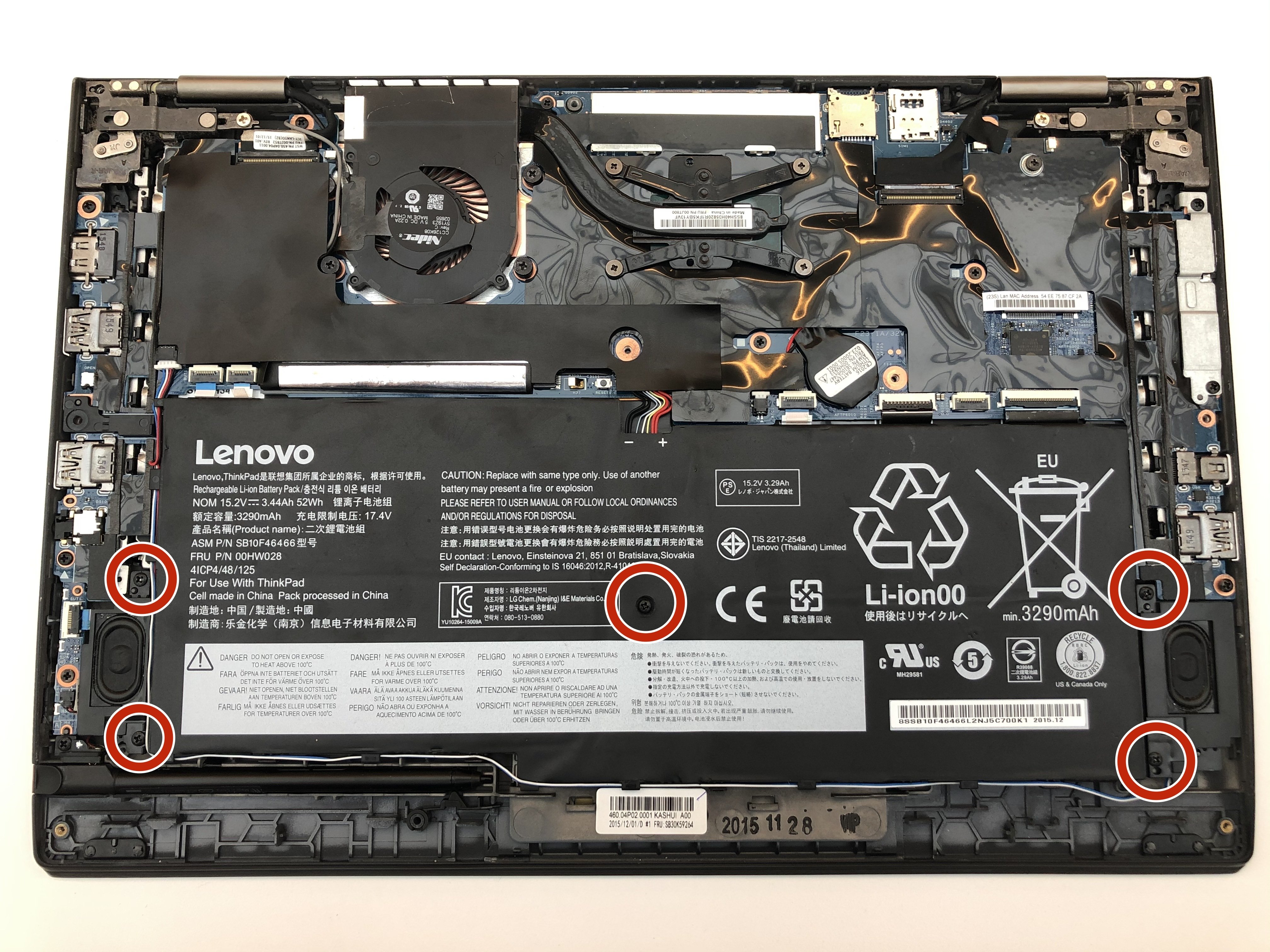
  • Remove the five 4.5mm Phillips #1 screws that secure the battery.
Step 3

Repair step

  • Using a pair of tweezers, push the sides of the white speaker wire toward the battery (where it says Lenovo) to unplug it.
Step 4

Repair step

  • Remove the speakers from either side of the battery. The connecting wire will unthread from the sides of the battery.
Step 5

Repair step

  • Lift the plastic black strip cover that's laying over the battery connector.
  • Use the iFixit opening tool to flip up and disconnect the black battery connector from its motherboard socket.
  • Gently pull the connector away from the battery to pull it out of the slot.
Step 6

Repair step

  • Lift and remove the battery away from the computer.
Step 7

Repair step

  • Using the Phillips #1 screwdriver, remove four 4.5 mm screws from the trackpad.
Step 8

Repair step

  • Using the iFixit opening tool, flip up the small covers to the track pad cable connectors.
  • Gently pull the cable out of place.
Step 9

Repair step

  • Using iFixit opening tools, lift up the frame of the track pad.
  • Gently remove the track pad away from the computer.