FIXONIC
SellSavedMy Fixonic
Official iFixit API visual reference

Backbone One Face Buttons Replacement

Use this guide to replace the face buttons on...

iFixit Library Backbone One Moderate 15 - 35 minutes Guide 142274
Open the authorised source
Licensed iFixit integration

This attributed iFixit guide is displayed through Fixonic's recorded commercial API permission. iFixit remains the independent source and author of the procedure.

Guide overview

Before you begin

Use this guide to replace the face buttons on your Backbone One.

Step 1

Remove the screws

  • Use a Phillips screwdriver to remove the four 5.9 mm-long screws.
Step 2

Rotate the upper part

  • Lift up the upper cover of the controller.
  • Swing the upper cover over and place it on the controller case.
  • Make sure that the interconnecting cable has no tension.
Step 3

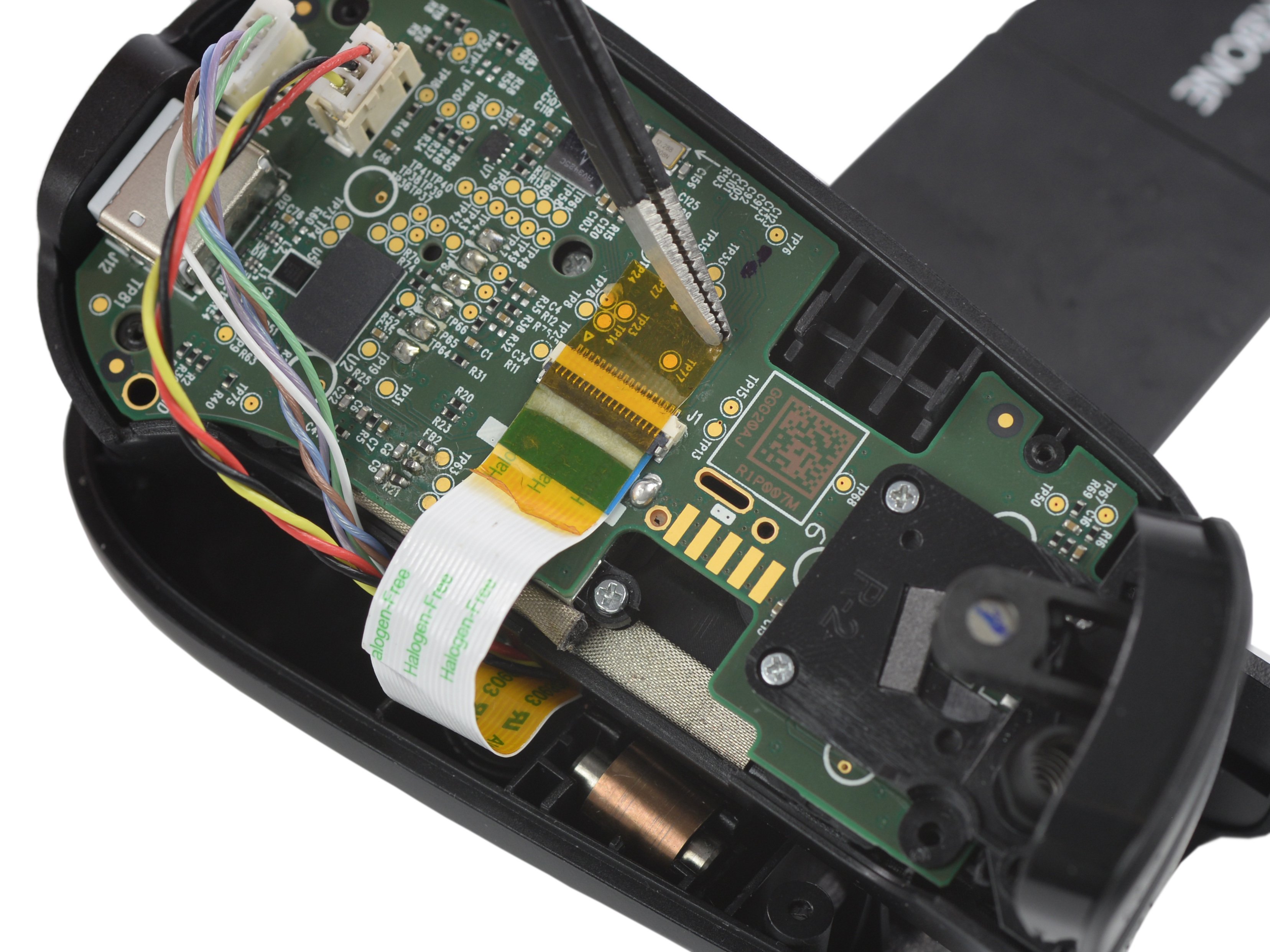
Remove the protective tape

  • Use a pair of tweezers to remove the yellow protective tape which is placed over the interconnect cable and the connector.
Step 4

Open the interconnect cable ZIF connector

  • Use the tip of an opening pick to open the gray flap of the interconnect cable ZIF connector by pushing it upwards.
Step 5

Disconnect the interconnect cable

  • Disconnect the cable by pulling it straight out the ZIF connector.
Step 6

Disconnect the phone connector cables

  • Use a pair of tweezers to disconnect the phone connector cables out from their sockets.
Step 7

Separate the upper case

  • Separate the the upper case of the left controller handle.
Step 8

Remove the screws

  • Use a Phillips screwdriver to remove the three 5.9 mm-long screws.
Step 9

Remove the trigger

  • Remove the trigger.
Step 10

Remove the bumper

  • Remove the bumper.
Step 11

Remove the screws

  • Use a Phillips screwdriver to remove the two 3.9 mm-long screws.
Step 12

Remove the mainboard

  • Remove the mainboard.
Step 13

Remove the rubber cover

  • Use a pair of blunt nose tweezers to remove the rubber cover which is placed over the face buttons.
Step 14

Remove the face buttons

  • Use a pair of tweezers to remove the face buttons.