
FIXONIC
SellSavedMy Fixonic
Official iFixit API visual reference

Lenovo ThinkPad T420s Hard Disk Drive Replacement

This guide will cover how to replace the hard...

iFixit Library Lenovo ThinkPad T420s Easy 5 - 10 minutes Guide 148490
Open the authorised source
Licensed iFixit integration

This attributed iFixit guide is displayed through Fixonic's recorded commercial API permission. iFixit remains the independent source and author of the procedure.

Guide overview

Before you begin

This guide will cover how to replace the hard disk drive (HDD) in a Lenovo ThinkPad T420s. This is NOT a guide for the Lenovo ThinkPad T420, that is a different model. Back up the hard drive that you wish to replace if you wish to keep the data on it before attempting this replacement. Unplug and power off your device before attempting this replacement. If the device is not powered off, it can result in damage to your laptop and hard drive. You’ll need a small (Philips #0 recommended) screwdriver and a new hard drive or solid state drive to complete this replacement.
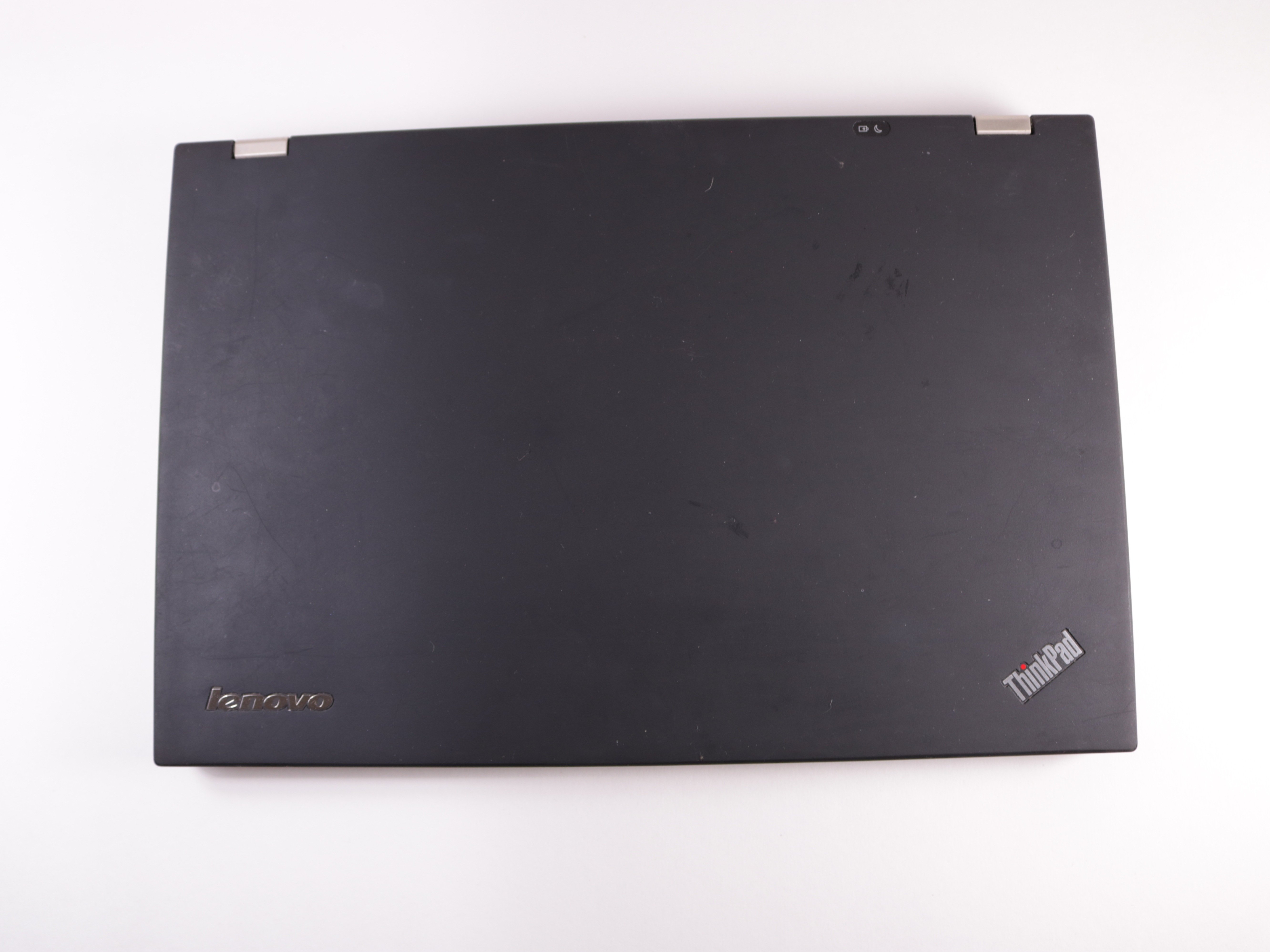
Step 1

Repair step

  • Turn the laptop upside down.
Step 2

Repair step

  • Use a Phillips #0 screwdriver to unscrew and remove the screw on the hard drive compartment at the bottom right of the device.
Step 3

Repair step

  • Pull the hard driver compartment cover up, then out by pulling on the edge near the screw hole.
Step 4

Repair step

  • Pull the hard drive out of the hard drive compartment.
Step 5

Repair step

  • Pull the red rails off both sides of the hard drive.
  • The red rails will be put back on the new hard drive that you install.