FIXONIC
SellSavedMy Fixonic
Official iFixit API visual reference

Asus Q525U Battery Replacement

Is your Asus Q525U laptop unable to hold a...

iFixit Library Asus Q525U Moderate 10 - 20 minutes Guide 148579
Open the authorised source
Licensed iFixit integration

This attributed iFixit guide is displayed through Fixonic's recorded commercial API permission. iFixit remains the independent source and author of the procedure.

Guide overview

Before you begin

Is your Asus Q525U laptop unable to hold a charge or power up without being connected to a charging cord? Follow this guide if you need to replace the battery of your Asus Q525U. Before beginning this guide, be sure to turn off your laptop and disconnect from the power adapter.

Step 1

Repair step

  • Begin by powering off the device and flipping the device over.
  • Carefully remove the two longer 9.5 mm screws on the corners with a Phillips #1 screwdriver.
  • Remove the eight 7.5 mm Phillips #1 screws on the back of the device.
Step 2

Repair step

  • Use an opening pick to separate the back cover from the device.
  • For easiest removal, begin by prying at one of the front corners and sliding the tool under the cover in a counter-clockwise motion (to the left) toward the laptop hinge.
Step 3

Repair step

  • Once the cover has been separated from the device, carefully lift the back cover off the device (begin by lifting from the front of the cover first).
  • The back cover should be easily removable, allowing full access to all of the internal components.
Step 4

Repair step

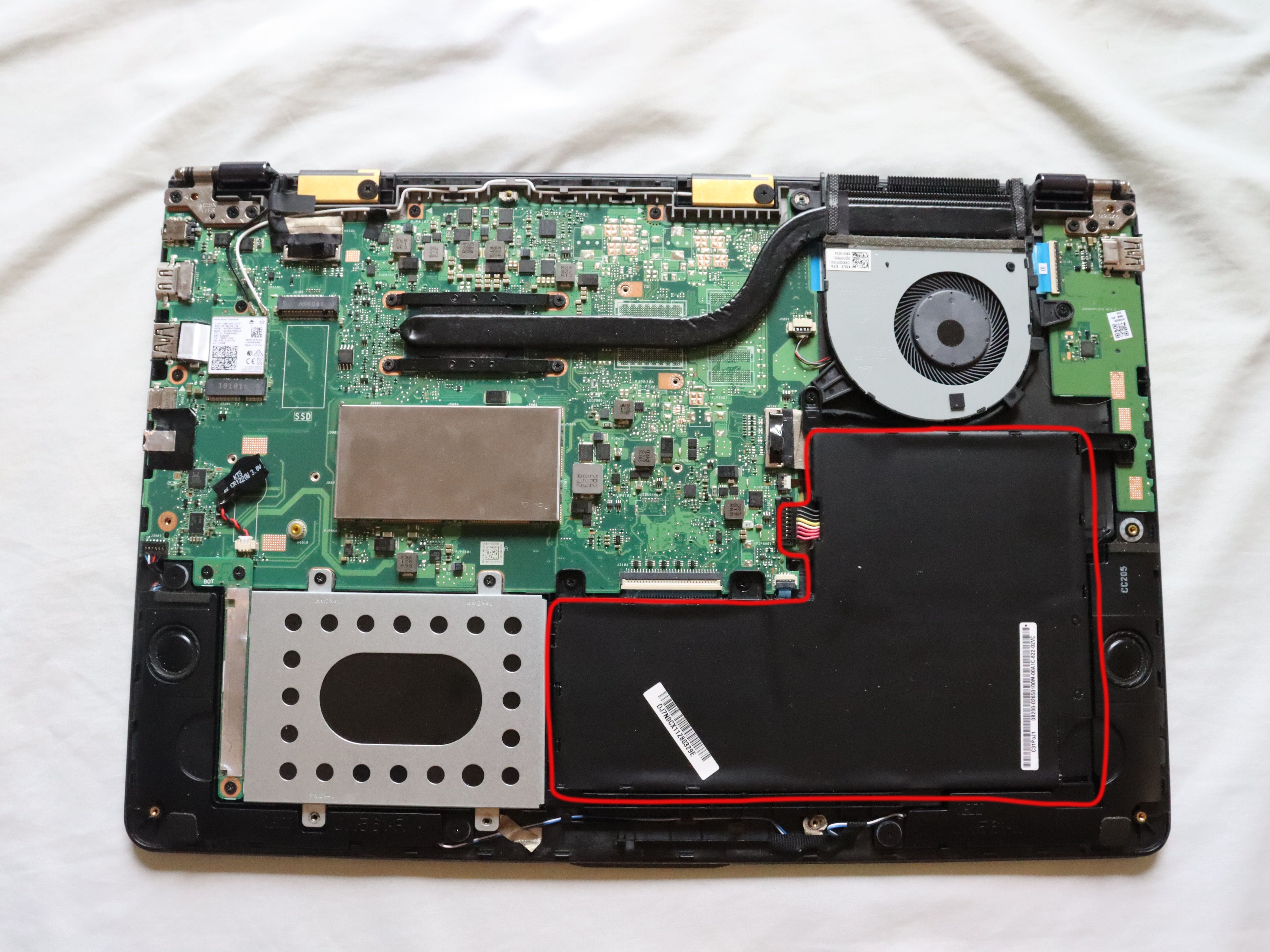
  • The battery of the device is outlined in red.
  • Using a Phillips #1 screwdriver, remove the four 5 mm screws that are holding the battery in place.
Step 5

Repair step

  • Using the Halberd spudger, carefully lift the battery connector up to disconnect it from the motherboard.
Step 6

Repair step

  • Lift the battery out of the frame to remove.