FIXONIC
SellSavedMy Fixonic
Official iFixit API visual reference

Dell Latitude E6430 thermal paste Replacement

It's a good idea to replace your thermal paste...

iFixit Library Dell Latitude E6430 Easy 30 minutes Guide 151864
Open the authorised source
Licensed iFixit integration

This attributed iFixit guide is displayed through Fixonic's recorded commercial API permission. iFixit remains the independent source and author of the procedure.

Guide overview

Before you begin

It's a good idea to replace your thermal paste from time to time. Especially true for the Core i7 models.

Step 1

Opening up

  • Start by removing the battery using the 2 latches (red rectangles)
  • All screws to be removed are marked with a D (green circles)
  • The hard disk or ssd has a shared screw with the d-cover (backcover). Also remove the screw below. (blue circle)
Step 2

DVD drive

  • To remove the dvd drive just press on the button marked with a red rectangle.
  • It will then pop out and may be used to just pull out the drive. Easy as cake.
Step 3

Lift the lid

  • To finally open the device turn it by 180 degrees and pry open from the backside with a spudger.
  • You will see that the d-cover is mounted to the other side.
  • Remove the cover and turn the device back like seen in image no 3.
Step 4

Removing the heatsink

  • There are four screws with springs on them which have to be removed in the order embossed on the heatsink. (red circles)
  • Also make sure to unplug the fan very carefully. (pink rectangle)
  • Remove the heatsink by lifting it out to the left side as it is fixed on the right side.
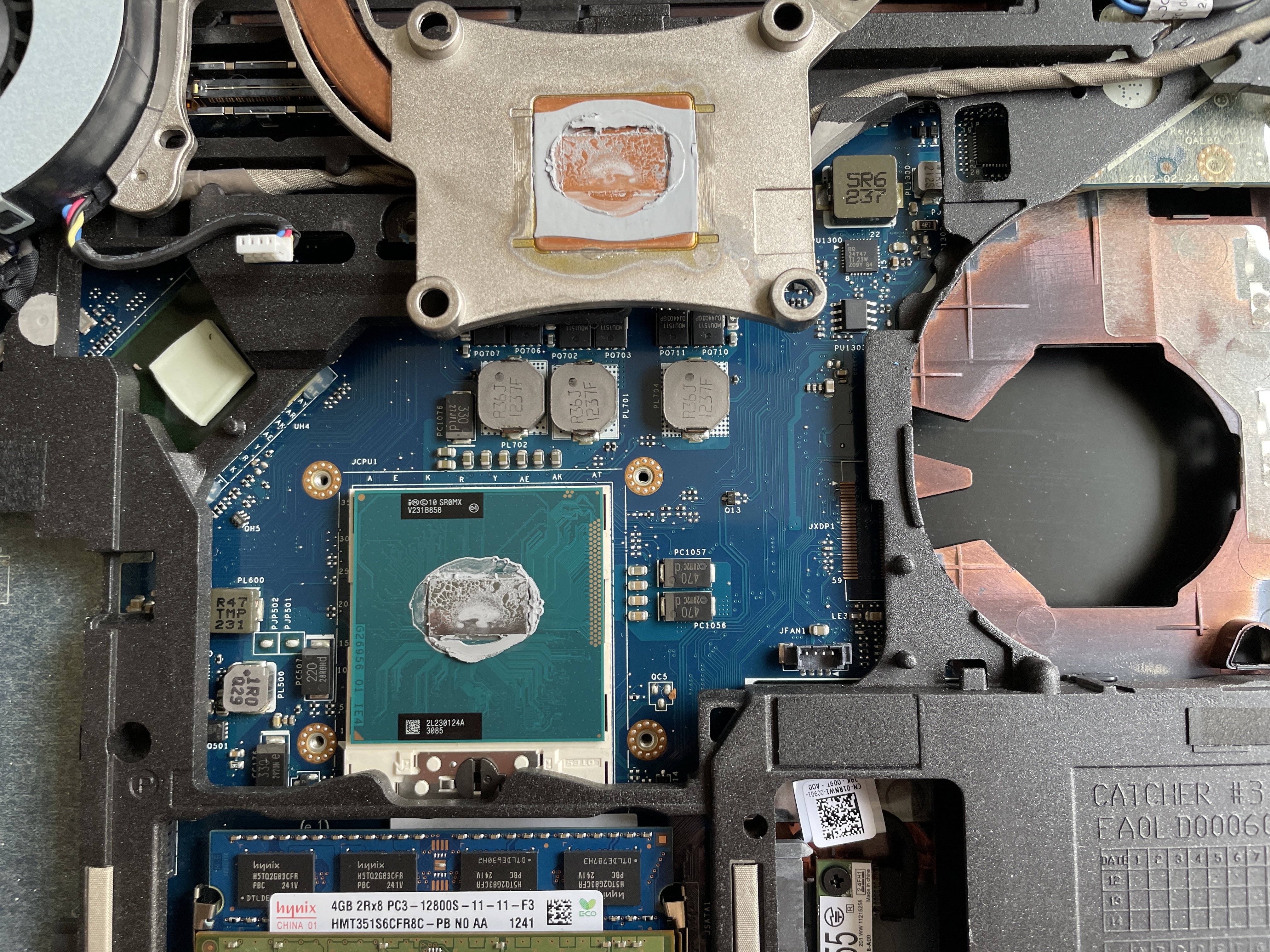
  • The cpu DIE lies bare in front of you - this is a very sensitive part. This is why the heatsink is screwed on in a particular order.
Step 5

Cleaning

  • Both the cpu DIE and the copper part of the heatsink should be cleaned as the thermal paste tends to dry out over time.
  • Use a cotton swab with some rubbing alcohol.
  • Never use a screwdriver or anything hard that might damage or scratch the surface.
Step 6

Reapply thermal paste

  • Use thermal paste of your liking and apply a thin layer (I almost used too much).
  • The thermal pad (red circle) should not be replaced with thermal paste. If it seems dried out you have to use one of the same size.
  • Reattach the heatsink very carefully and tighten the screws in the given order. Also don't forget to connect the fan.
  • If your fan seems to be clogged with dust you should clean it while it's removed.