FIXONIC
SellSavedMy Fixonic
Official iFixit API visual reference

How to Create a Shortcut for System Appearance

In this Guide, we will create a service using...

iFixit Library Mac OS X Very easy 5 - 10 minutes Guide 158982
Open the authorised source
Licensed iFixit integration

This attributed iFixit guide is displayed through Fixonic's recorded commercial API permission. iFixit remains the independent source and author of the procedure.

Guide overview

Before you begin

In this Guide, we will create a service using Automator to change the System Appearance from Light to Dark with a single keyboard shortcut.

Step 1

Automator

  • Open up Spotlight.
  • Click the Magnifying Glass in the menu bar.
  • Use Keyboard Shortcut: Cmd + Space
Step 2

Repair step

  • Type Automator in the Text area.
  • Double Click the application to open it.
Step 3

New Document

  • Go to File => New and a window will appear.
  • You can also use the shortcut Cmd + N
  • When you open Automator, nothing will happen until you create a new document.
Step 4

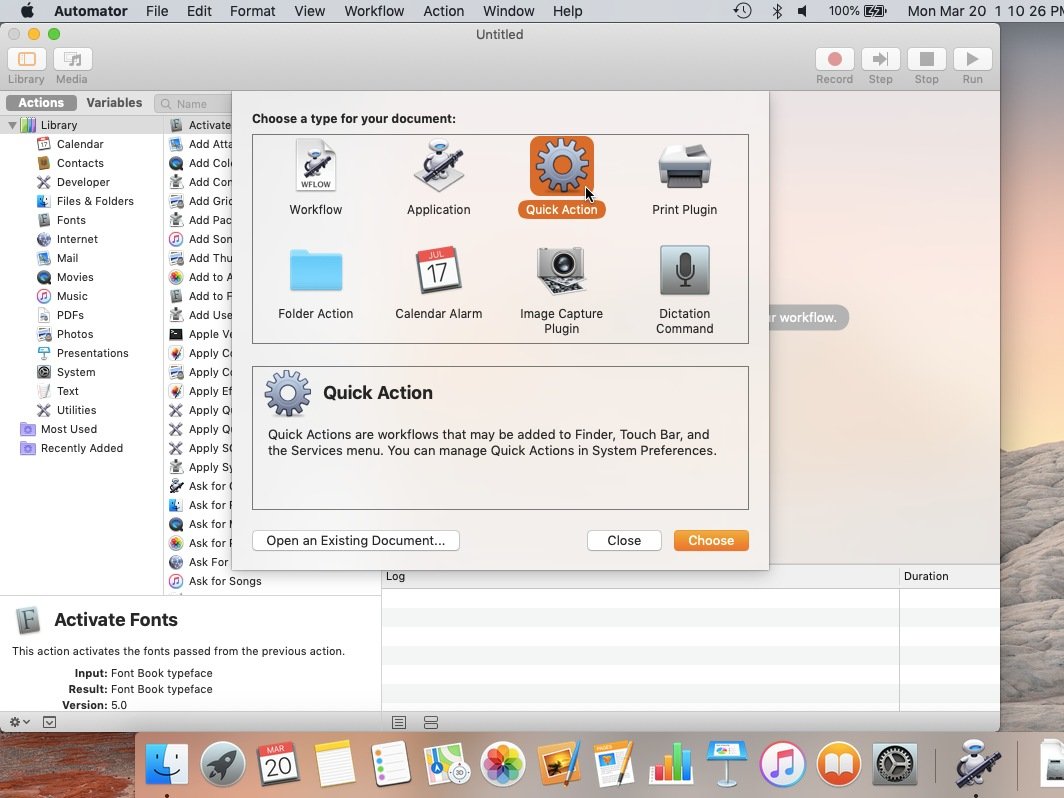
Create Document

  • Choose Quick Action in the window that appears.
  • Hit Enter or Click Choose
Step 5

Repair step

  • We won't be walking through every single thing that Automator does in this guide, we will just be creating the shortcut.
Step 6

Adjust Command

  • In Workflow receives, Choose Automatic
  • Beside in, Choose any application
  • If you choose anything else besides any application, the shortcut will work only when a certain application is open.
Step 7

Repair step

  • In Image and Color, these will not change the shortcut at all, but you can adjust them to the way you like.
Step 8

Final Steps

  • The commands should look something like this:
Step 9

Adding Action

  • To create the action, choose Library in the Top-Left corner of the window.
  • Click the Search bar and start typing Change System Appearance
Step 10

Repair step

  • Click the action that appears.
  • Drag it into the giant box
Step 11

Repair step

  • The action will appear in the box.
Step 12

Fix Action

  • You will see three different commands: Light, Dark, Toggle Light/Dark
  • Choose Toggle Light/Dark so you won't have to create two shortcuts.
  • One for Light, one for Dark.
Step 13

Testing

  • Time to test this action!
  • Click the Run command in the corner of the window.
  • As the action is running, the screen may flash a couple of times.
  • If everything is successful, the system should be dark.
Step 14

Troubleshooting

  • Click Run once more to make the system Light
  • Make sure everything was successful by checking the text at the bottom of the window.
  • If the action was not successful, go back and make sure everything is the same as this guide.
Step 15

Save Service

  • Choose File => Save or Cmd + S to save your Service. Name it whatever you wish.
  • Your Service will be saved in Users/User Name/Library/Services
Step 16

Using Service

  • You can now Quit Automator
  • Click the current Application in the menu bar, and choose Services. There, you will see your new service.
  • If you are using the service for the first time, you will probably get a notification like the one in the picture. This is simply because the app wants to change your system settings, and macOS does not like it very much. Click OK to continue.
Step 17

Setting Shortcut

  • Now we will add a keyboard shortcut to quickly change the system appearance.
  • Search for System Preferences in Spotlight.
Step 18

Repair step

  • Click Keyboard in the window, and then Shortcuts. Then choose Services
Step 19

Repair step

  • Scroll to the very bottom, you will see a section named General. You will see your Service in this section.
Step 20

Repair step

  • Click on your Shortcut.
  • Click Add Shortcut.
  • A Text box will appear
Step 21

Repair step

  • You can now add your own shortcut.
  • A shortcut is any combination of at least one modifier key (Cmd / Opt / Control / Shift) and one regular key (Any Letter or Number on the keyboard).
  • You should probably choose a shortcut that requires a few keys. I chose Shift+Opt+Cmd+Z. No other commands on the mac use this shortcut.
Step 22

Repair step

  • When you press the keys to create your shortcut, nothing will happen, click Add Shortcut one last time and then hit enter.
  • You do not have to type out a shortcut. Simply press the keys you want to be your shortcut in order to make it.
Step 23

Finishing up

  • You can know quit System Preferences.