
FIXONIC
SellSavedMy Fixonic
Official iFixit API visual reference

HP G62-234DX Wi-Fi Card Replacement

If your HP G62-234DX laptop is not connecting...

iFixit Library HP G62-234DX Easy 5 - 15 minutes Guide 167169
Open the authorised source
Licensed iFixit integration

This attributed iFixit guide is displayed through Fixonic's recorded commercial API permission. iFixit remains the independent source and author of the procedure.

Guide overview

Before you begin

If your HP G62-234DX laptop is not connecting to Wi-Fi or is constantly buffering despite being in range of a reliable network, use this guide to replace the Wi-Fi card. This guide will provide a breakdown of the Wi-Fi care replacement process. Following these steps will help you replace your Wi-Fi if it is not working properly. The Wi-Fi card allows the device to connect to a network wirelessly. Inability to connect to a network makes it is impossible to go online or upload work to the cloud. This limits the functionality of the laptop and is not ideal for most laptop users. Before using this guide, make sure there is not an issue with the Wi-Fi network itself as this would also prevent you from having a stable connection to the internet or even connecting at all. Before the repair, turn off your laptop and disconnect from the charger.
Step 1

Repair step

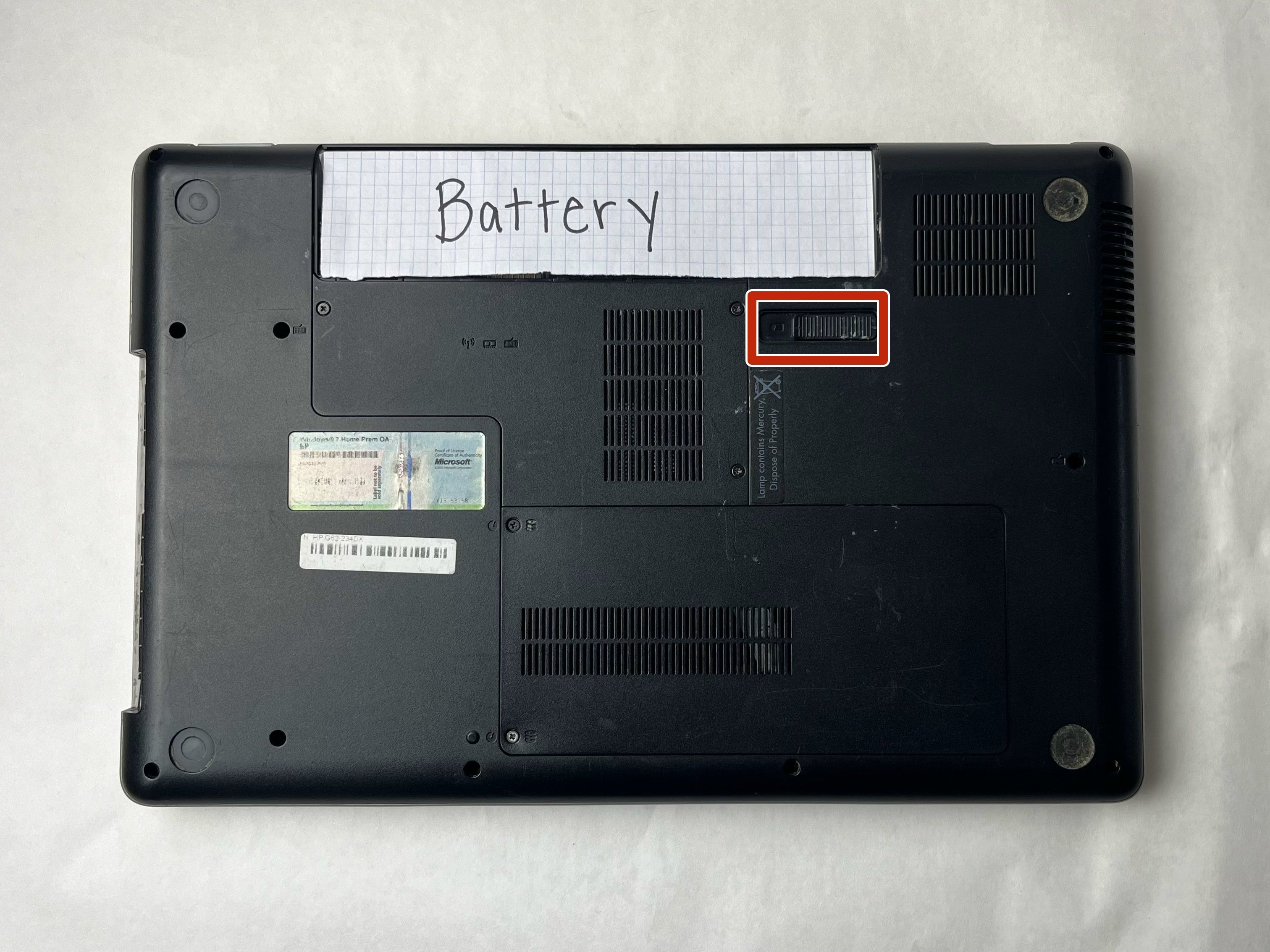
  • Make sure the computer is turned off and disconnected from a charger.
  • Place your laptop on a clean, flat surface with the bottom facing up.
  • Slide the battery lock to the left.
  • Slide the battery out from the laptop while holding the lock to the left.
  • Remove the battery.
Step 2

Repair step

  • Use a Phillips #0 screwdriver to remove the three 6.0 mm screws.
  • The screws that are attached to the panel do not need to be removed completely.
  • Remove the back panel to access the Wi-Fi card.
Step 3

Repair step

  • Slide a thin, ESD-safe pry tool or tweezers under the wire until it's snug against the connector, and pry straight up from the board to disconnect the coaxial cables from the Wi-Fi card.
Step 4

Repair step

  • Use a Phillips #0 screwdriver to remove the 3.0 mm screw from the Wi-Fi card.
  • When the screw is removed the card will pop up at a 45-degree angle.
Step 5

Repair step

  • Remove the Wi-Fi card by sliding it out from the socket.