FIXONIC
SellSavedMy Fixonic
Official iFixit API visual reference

PXN Arcade Stick Button Replacement

Many buttons become unresponsive after time,...

iFixit Library Computer Game Controller Easy 5 minutes Guide 179353
Open the authorised source
Licensed iFixit integration

This attributed iFixit guide is displayed through Fixonic's recorded commercial API permission. iFixit remains the independent source and author of the procedure.

Guide overview

Before you begin

Many buttons become unresponsive after time, especially for a controller built for fighting games. This guide is for replacing any buttons on your PXN Arcade Stick. This guide applies to all buttons from any position on the controller.

Step 1

Repair step

  • Place the PXN Arcade Stick on a flat surface.
Step 2

Repair step

  • Turn the controller upside down.
  • Remove the four screws from the bottom of the device.
Step 3

Repair step

  • Set the back cover aside, being cautious of the cable connected to the motherboard.
  • Unplug the controller converter plug.
Step 4

Repair step

  • Unplug the button you wish to replace.
Step 5

Repair step

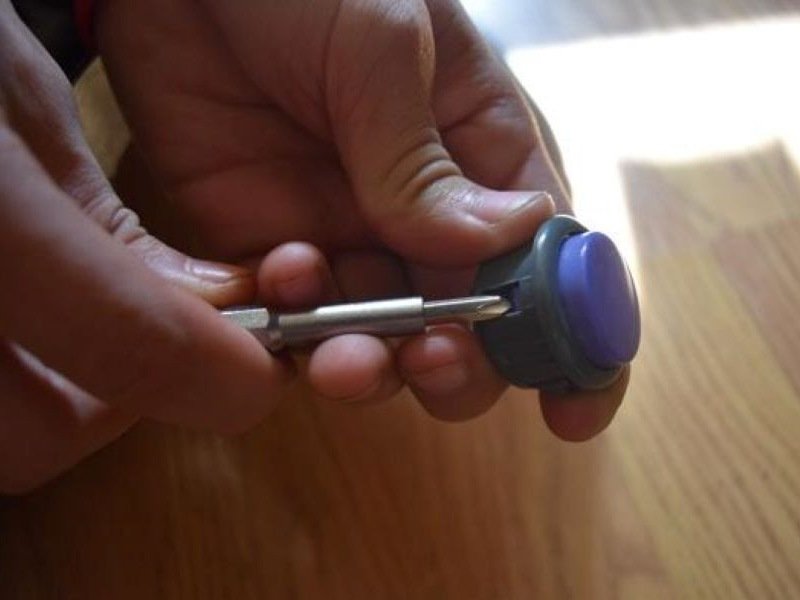
  • Push in and down on the button components.
Step 6

Repair step

  • Use a spudger to push in and up on the button housing.
Step 7

Repair step

  • Line up the replacement button with the socket and push down.
Step 8

Repair step

  • Push the new button down into the back case of the controller.