
FIXONIC
SellSavedMy Fixonic
Official iFixit API visual reference

Dell Chromebook 3100 Battery Replacement

If your Dell Chromebook 3100 has lost its...

iFixit Library Dell Chromebook 3100 Moderate 5 - 15 minutes Guide 184544
Open the authorised source
Licensed iFixit integration

This attributed iFixit guide is displayed through Fixonic's recorded commercial API permission. iFixit remains the independent source and author of the procedure.

Guide overview

Before you begin

If your Dell Chromebook 3100 has lost its ability to hold a charge, you most likely have a dead battery, which requires replacement. A functional battery provides power to your device. If you notice that your charged battery is draining more quickly than usual, consider calibrating your battery to determine an accurate charging capacity. If you continue to notice significant drops in battery percentage over a short period of time after charging, you should replace your battery. A punctured battery can cause a dangerous fire. If your battery is swollen, take appropriate precautions. Make sure to power down your device before you begin.
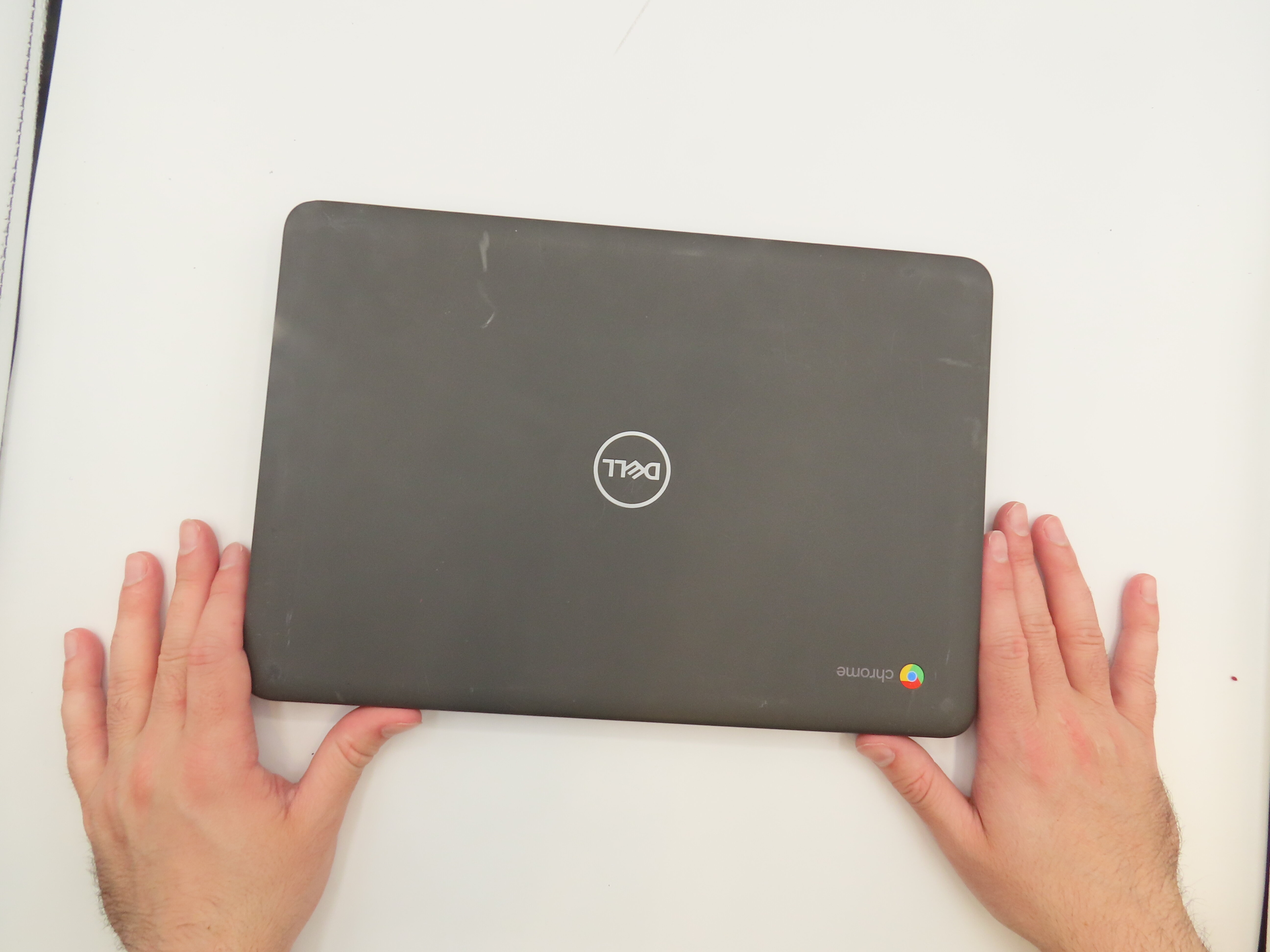
Step 1

Repair step

  • Flip the laptop so the bottom is facing upwards.
  • Loosen the nine screws from the back panel using a Phillips #0 screwdriver.
Step 2

Repair step

  • Pry the back panel away from the rest of the laptop using an iFixit opening tool.
Step 3

Repair step

  • Remove the screws attached to the battery using a Phillips #0 screwdriver.
  • Disconnect the battery from the motherboard by gently pulling on the connector cable at the top of the battery.
Step 4

Repair step

  • Carefully remove the battery.