FIXONIC
SellSavedMy Fixonic
Official iFixit API visual reference

Framework Desktop Wi-Fi Module Removal

Attributed iFixit repair guide for Framework Desktop.

iFixit Library Framework Desktop Moderate No estimate Guide 188281
Open the authorised source
Licensed iFixit integration

This attributed iFixit guide is displayed through Fixonic's recorded commercial API permission. iFixit remains the independent source and author of the procedure.

Step 1

Reposition the Desktop

  • Lay the left side of the Desktop on your work surface so the underside of the Mainboard is facing upward.
Step 2

Remove the Wi-Fi Module screw

  • Use your Framework Desktop Screwdriver to remove the 7.0 mm‑long Phillips screw securing the Wi-Fi module.
Step 3

Remove the Wi-Fi module cover

  • Use your fingers to slide the Wi-Fi module cover straight off the bottom of the module.
  • Remove the cover.
Step 4

Disconnect the Wi-Fi Module

  • The Wi-Fi module has two delicate coaxial cable connectors. Follow this step carefully to avoid damaging them.
  • Press and hold the Wi-Fi module down with your fingers.
  • Use your fingers to grip the white antenna cable, as close to the metal head as possible.
  • If you have angled tweezers, slide one arm of a pair of tweezers under the antenna connector, as close to the metal head as possible.
  • Gently lift the connector straight up to disconnect the white antenna cable.
  • Repeat the procedure with the black antenna cable.
Step 5

Remove the Wi-Fi module

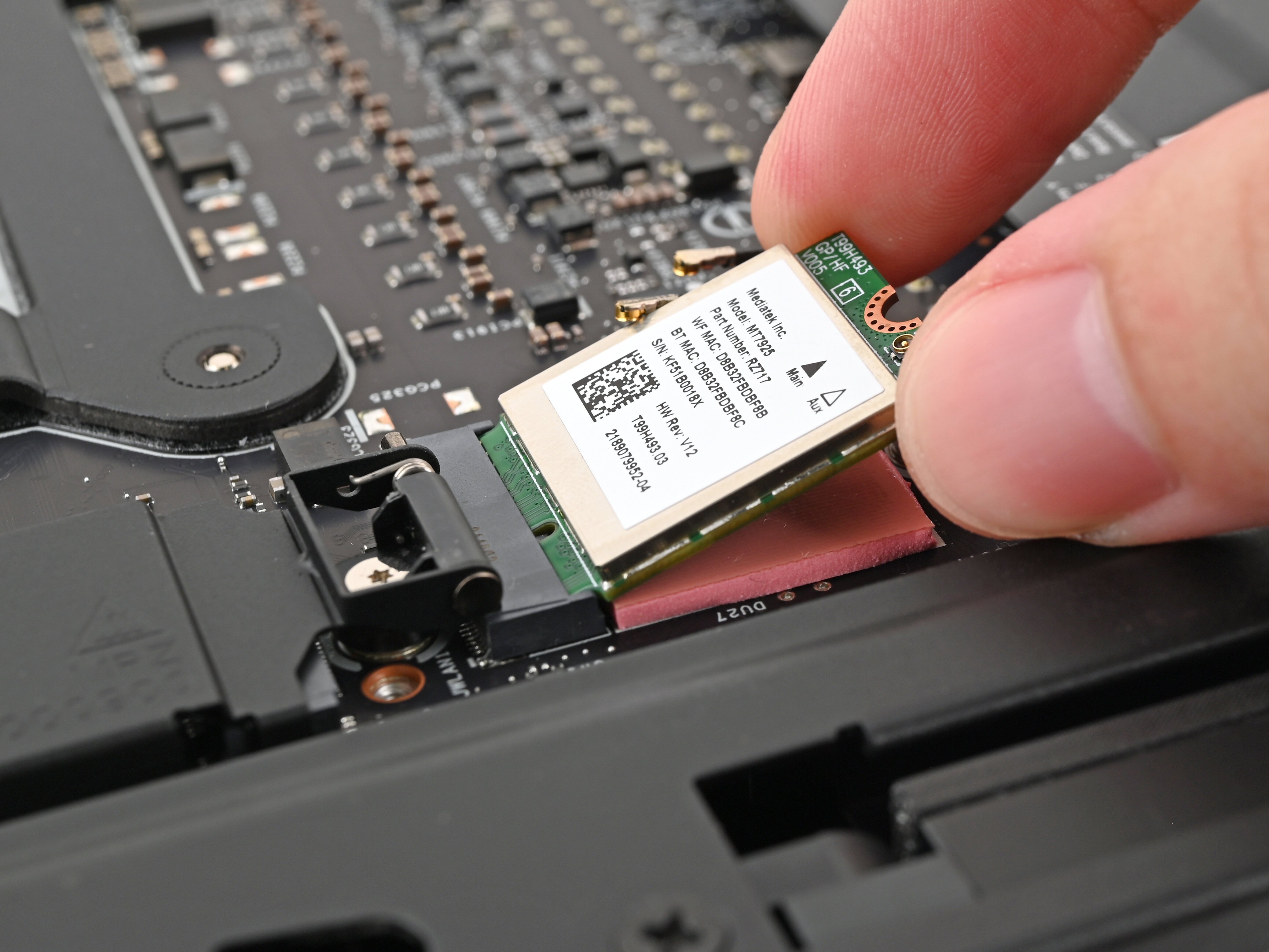
  • Grip the Wi-Fi module by its edges and pull it straight out of its socket.
  • Remove the Wi-Fi module.