FIXONIC
SellSavedMy Fixonic
Official iFixit API visual reference

Huawei u7519 Screen Replacement

Attributed iFixit repair guide for Huawei u7519.

iFixit Library Huawei u7519 Moderate 30 - 50 minutes Guide 22212
Open the authorised source
Licensed iFixit integration

This attributed iFixit guide is displayed through Fixonic's recorded commercial API permission. iFixit remains the independent source and author of the procedure.

Step 1

Repair step

  • Take off the back covering of the phone along with the battery and SIM card.
  • The SIM card is located above the battery.
Step 2

Repair step

  • Using the Phillips #00 Screwdriver, take out the four small screws located at the four corners of the phone.
Step 3

Repair step

  • Using the same screwdriver, take out the two bigger screws located on each side of the battery compartment.
Step 4

Repair step

  • Once all the screws are removed, use the iPod opening tool to pry off the back covering of the phone along the edge of the back cover and you will have access to the motherboard.
  • The power and volume buttons will fall out of the phone. Set aside for reassembly.
Step 5

Repair step

  • Carefully pull the backing of the phone from the motherboard with your hands.
Step 6

Repair step

  • To remove front case from the motherboard, first pull back the silver tab.
  • Then remove the orange tab.
Step 7

Repair step

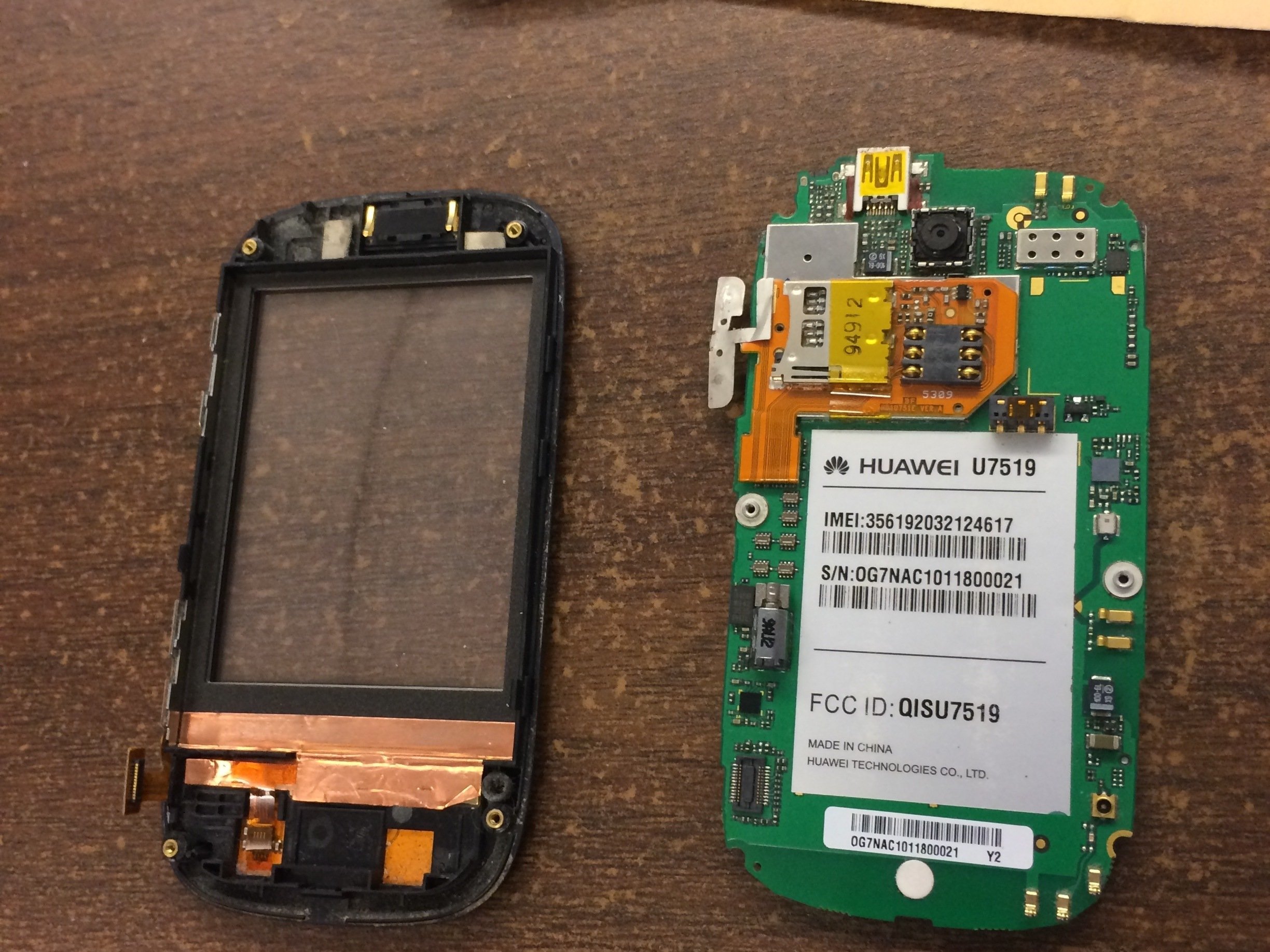
  • Once the silver and orange tabs are pulled back, carefully pull the motherboard apart from the front case.
Step 8

Repair step

  • Now that the motherboard is separate from the front case, you can discard the original motherboard.
  • The LCD screen can not be removed from the motherboard. Therefore, a new motherboard must be purchased in order to replace this screen.
Step 9

Repair step

  • For reassembly:
  • Place the new motherboard on the front case.
  • Snap the tabs back into place.
  • Replace back casing and snap in place.
  • Screw in screws.
  • You can also follow these steps in reverse, which is the same process as outline above.
  • Replacing the power and volume buttons may be tricky. For ease, use tweezers.
  • You have now successfully replaced the screen for the phone.