This attributed iFixit guide is displayed through Fixonic's recorded commercial API permission. iFixit remains the independent source and author of the procedure.
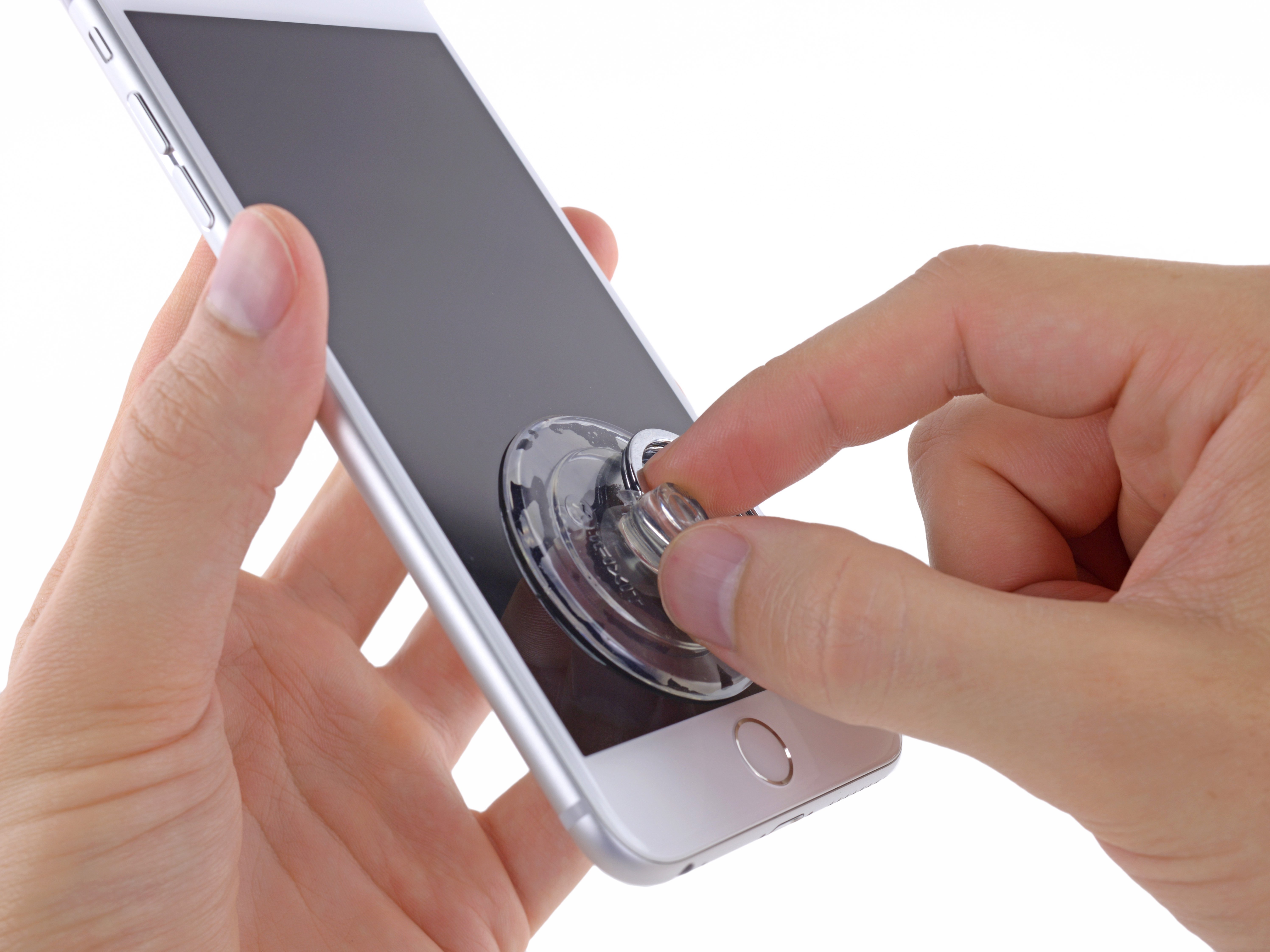
Press a suction cup onto the screen, just above the home button.
Be sure the cup is pressed securely onto the screen to get a tight seal.
If your display is badly cracked, covering it with a layer of clear packing tape may allow the suction cup to adhere. Alternatively, very strong tape may be used instead of the suction cup. If all else fails, you can superglue the suction cup to the broken screen.
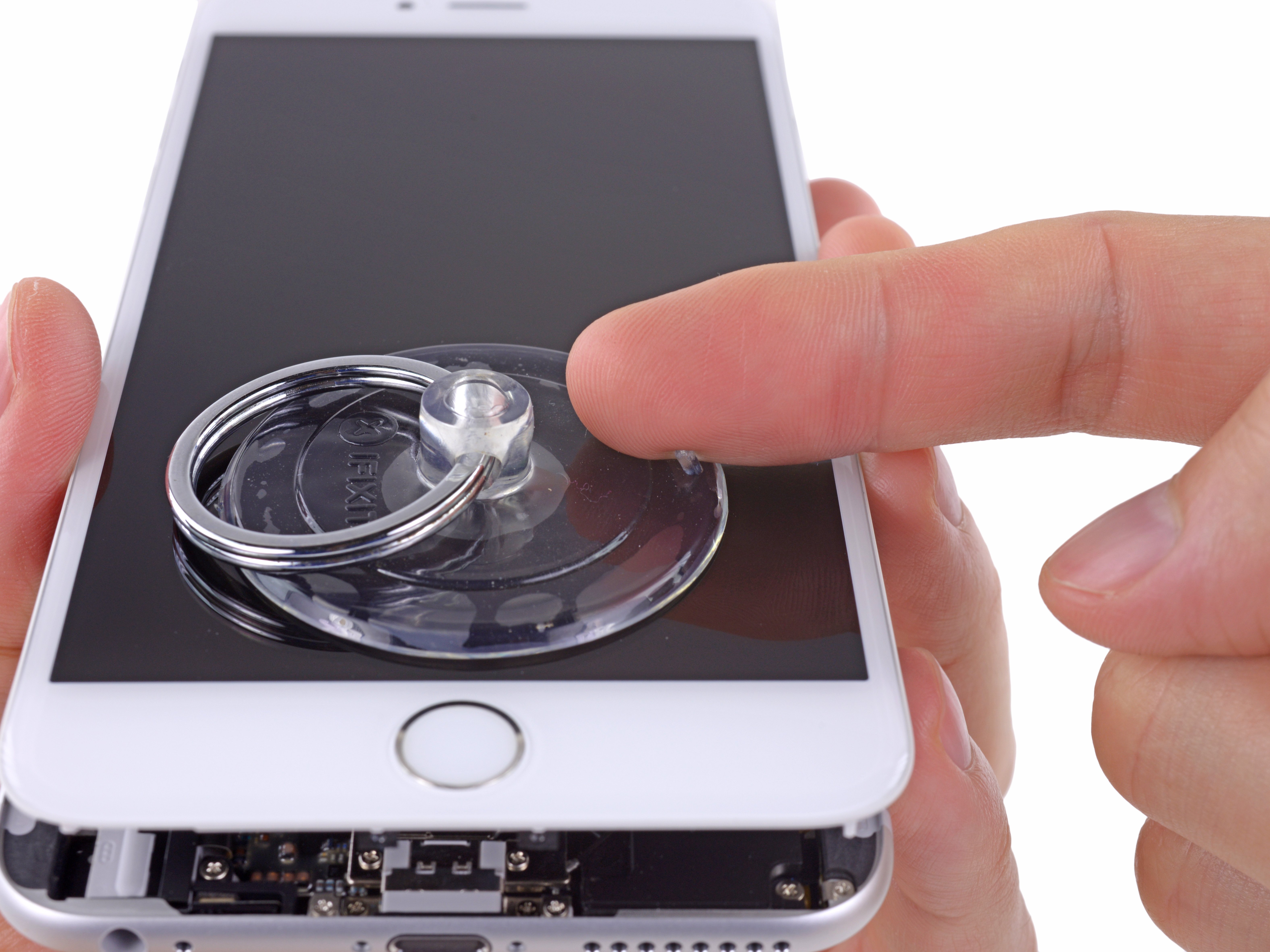
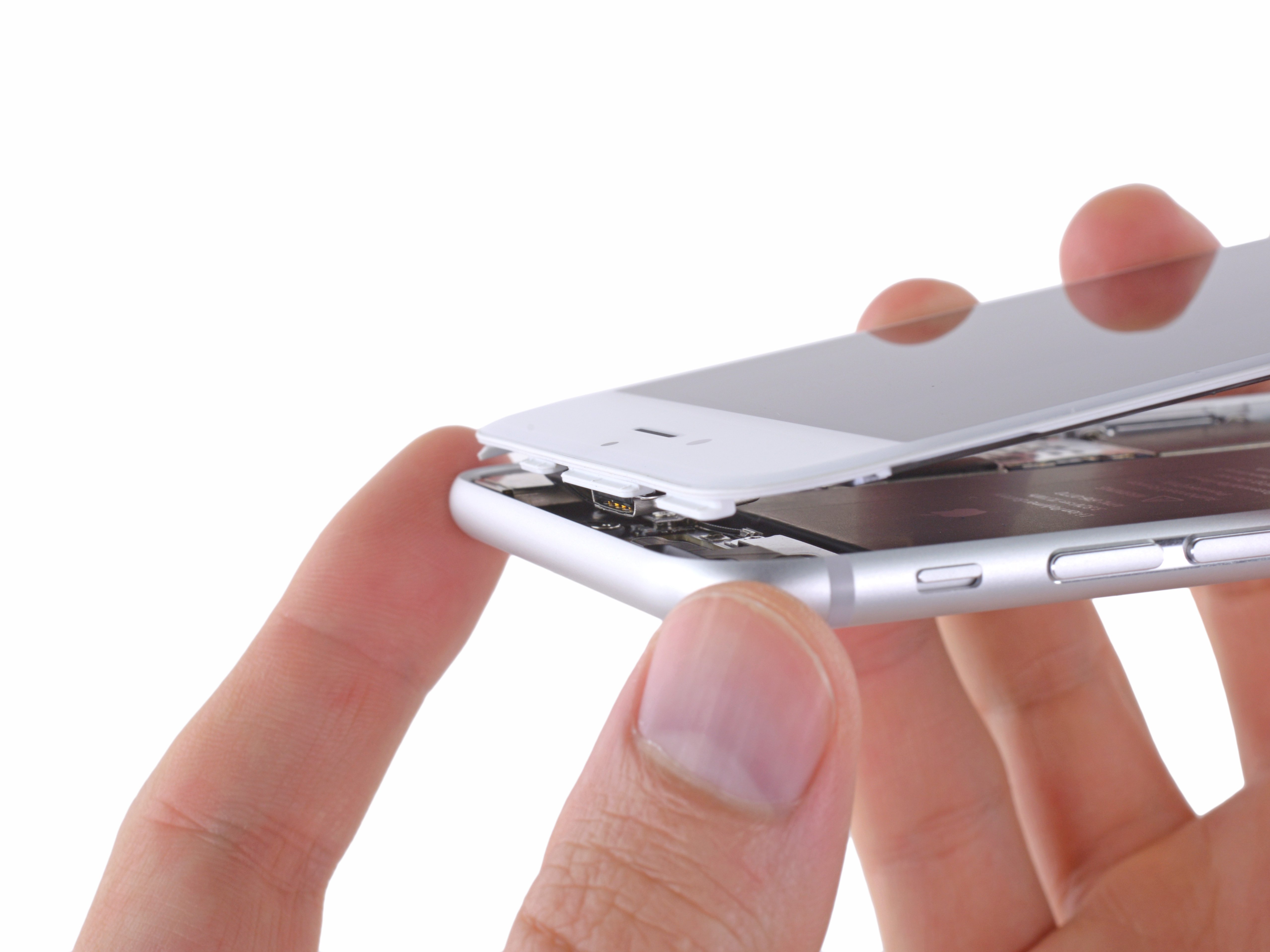
While holding the iPhone down with one hand, pull up on the suction cup to slightly separate the front panel assembly from the rear case.
Take your time and apply firm, constant force. The display assembly is a much tighter fit than most devices.
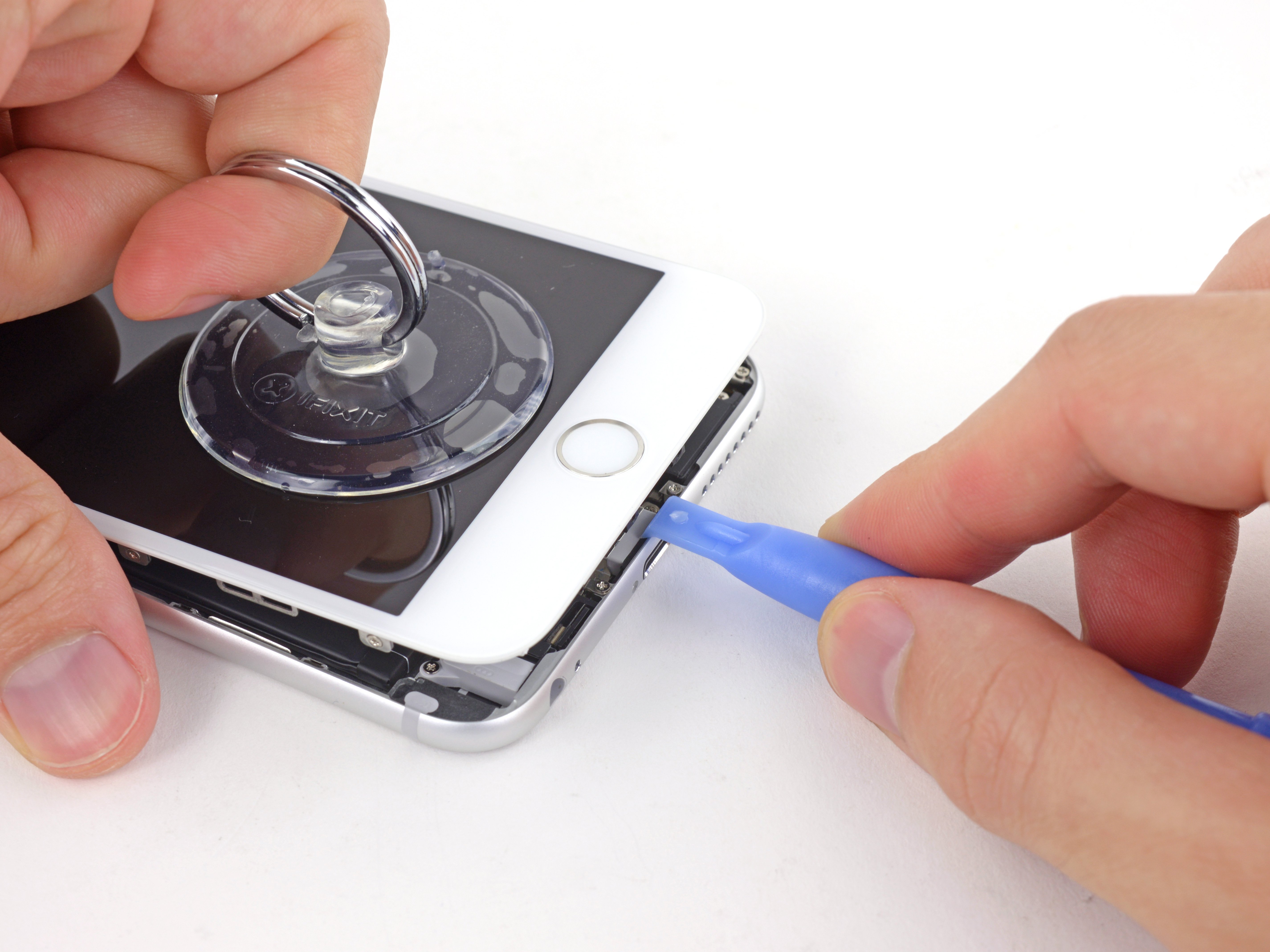
Using a plastic opening tool, begin to gently pry the rear case down, away from the display assembly, while continuing to pull up with the suction cup.
There are several clips attaching the front panel assembly to the rear case, so you may need to use a combination of the suction cup and plastic opening tool to free the front panel assembly.
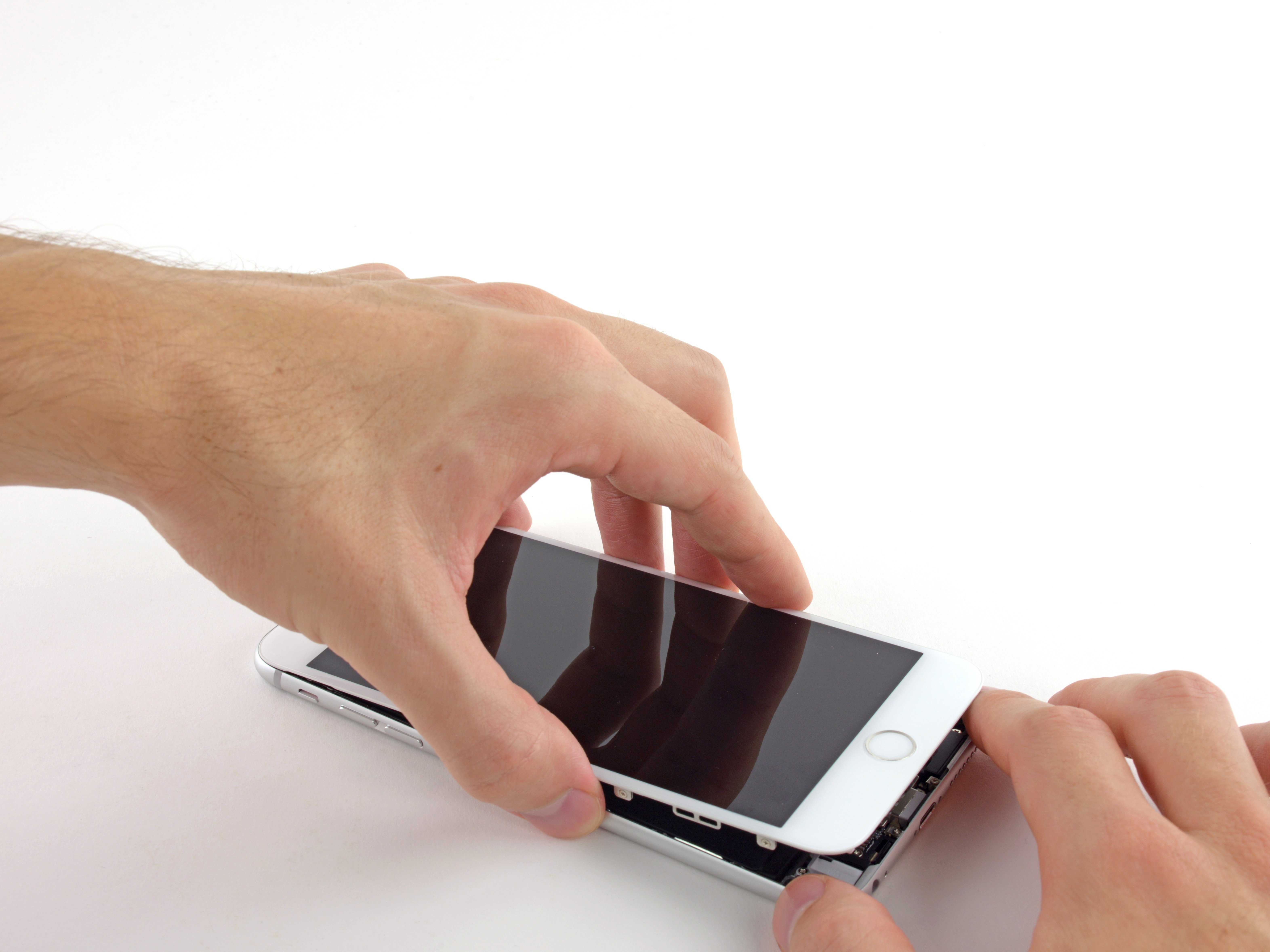
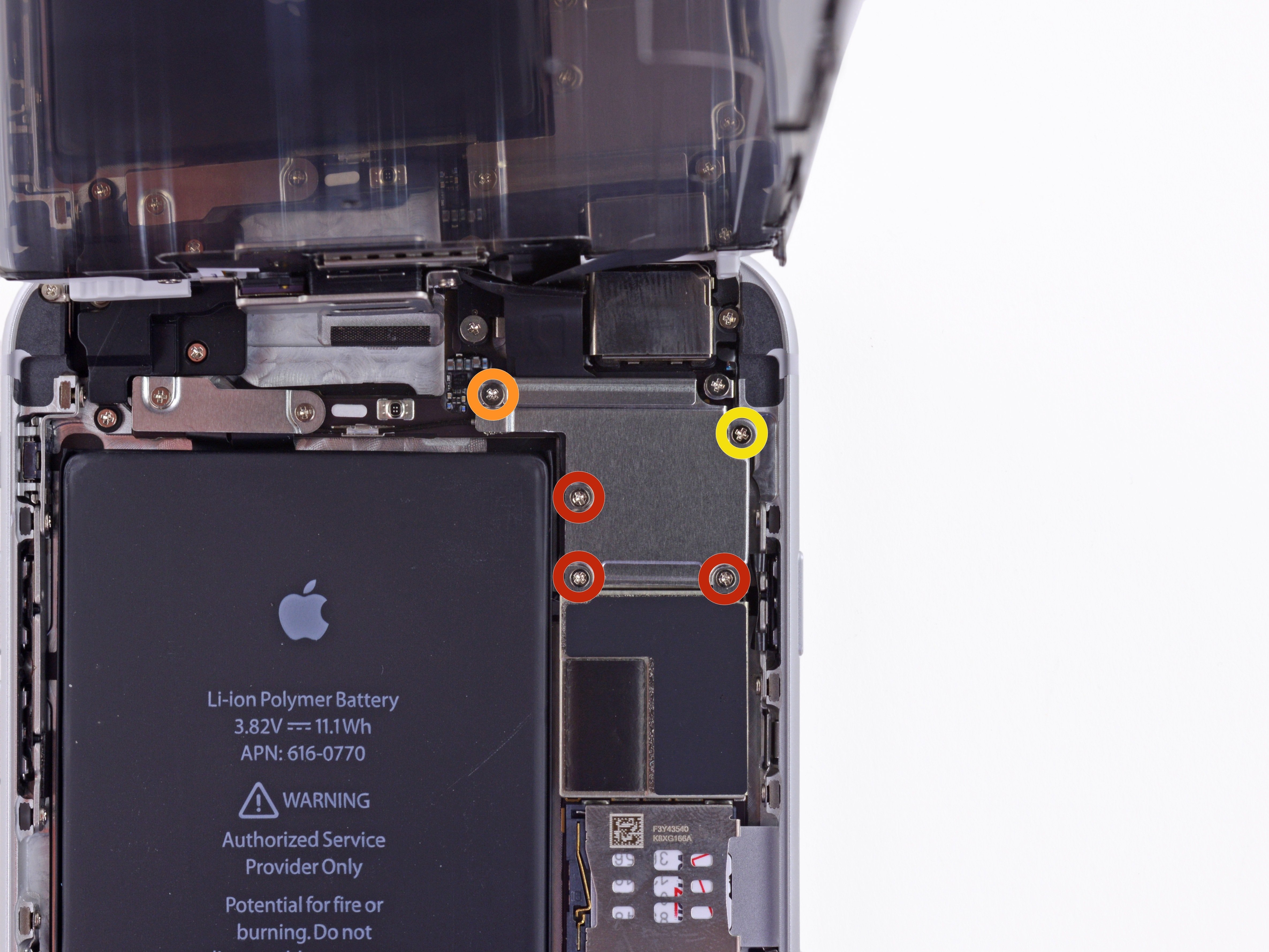
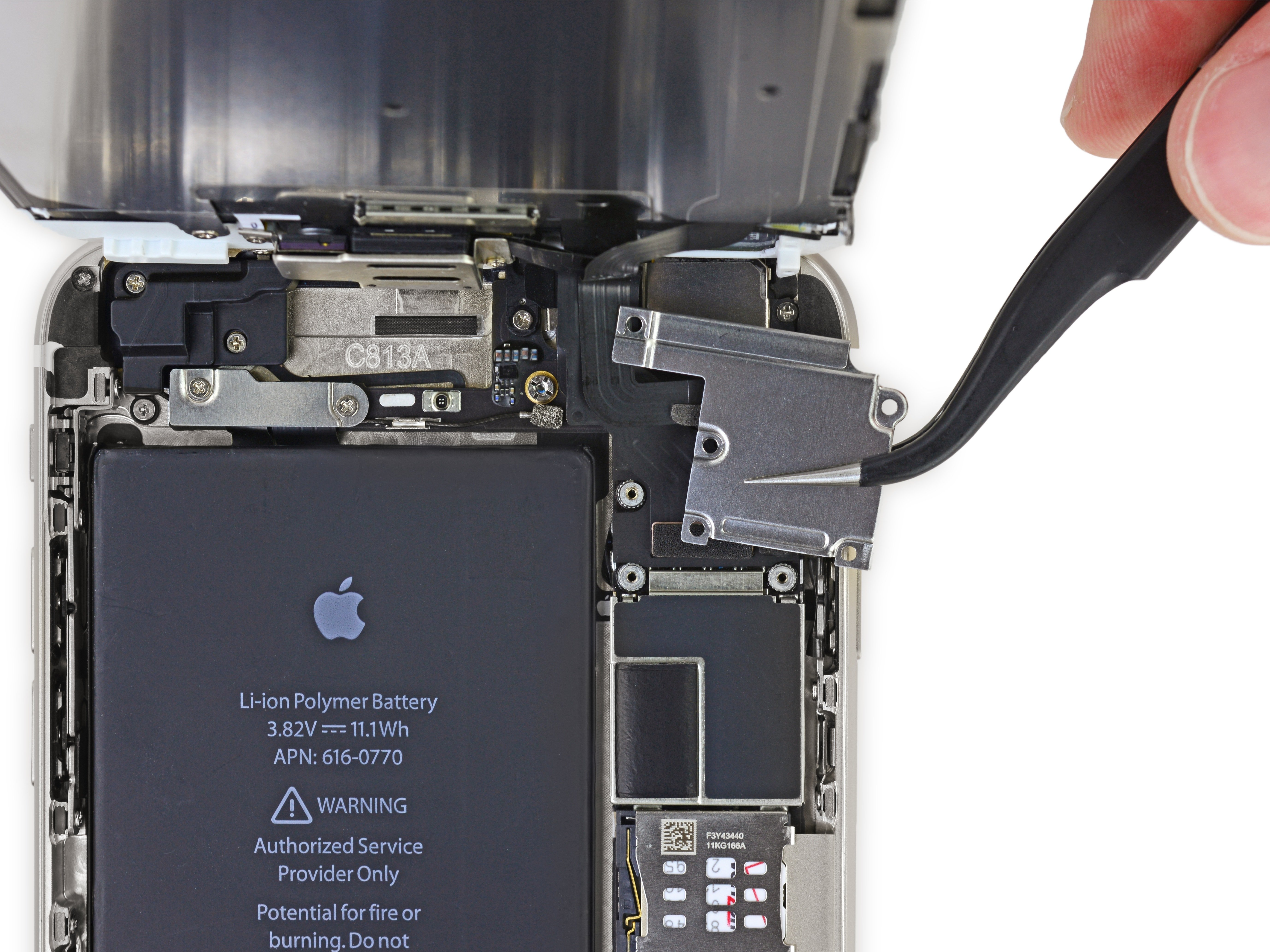
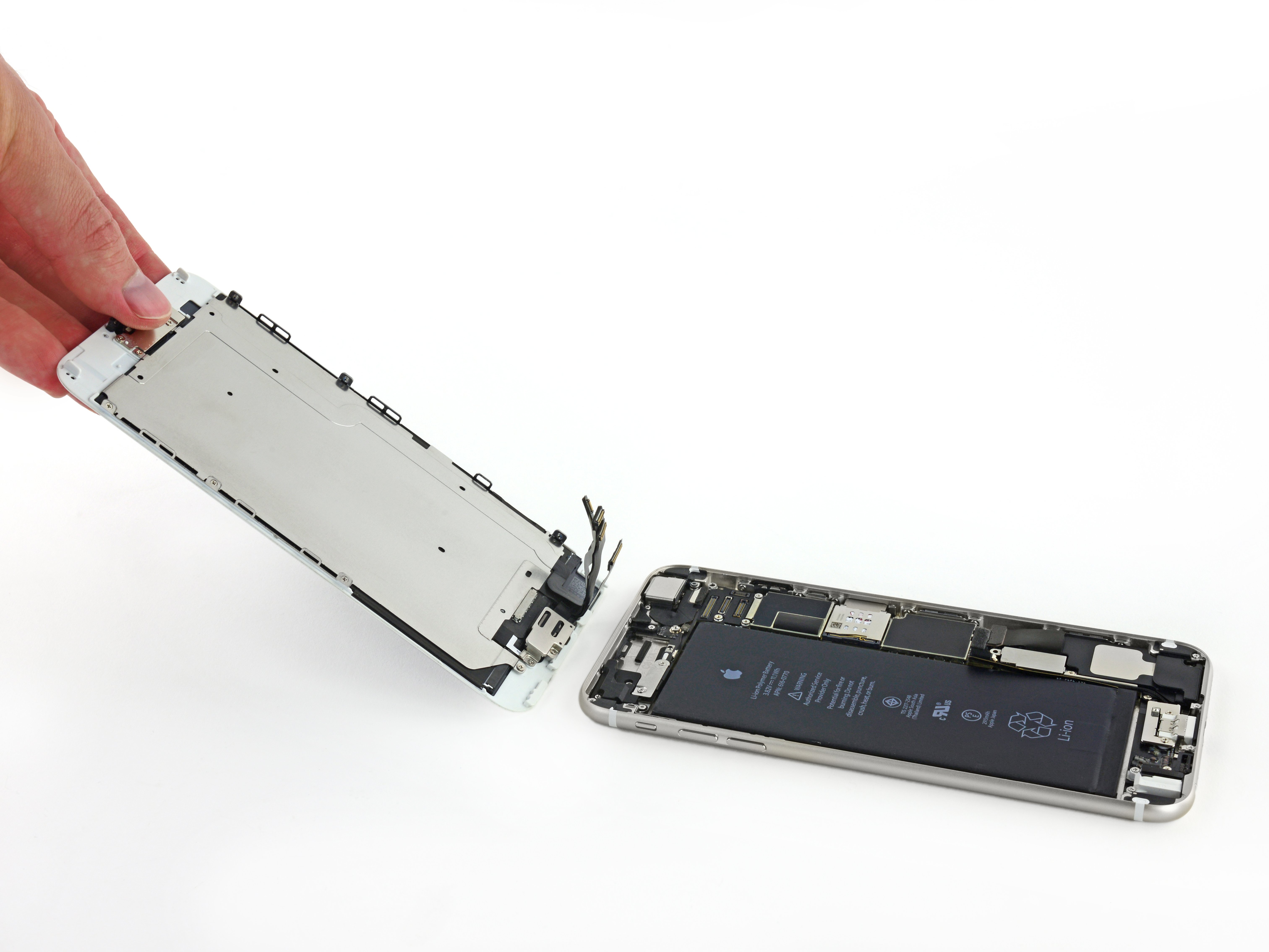
Several clips along the top edge of the front panel form a partial hinge, allowing the front panel assembly to swing open like a book.
During reassembly, align the clips just below the top edge of the rear case. Then, slide the front panel upward until its top edge is flush with that of the rear case.
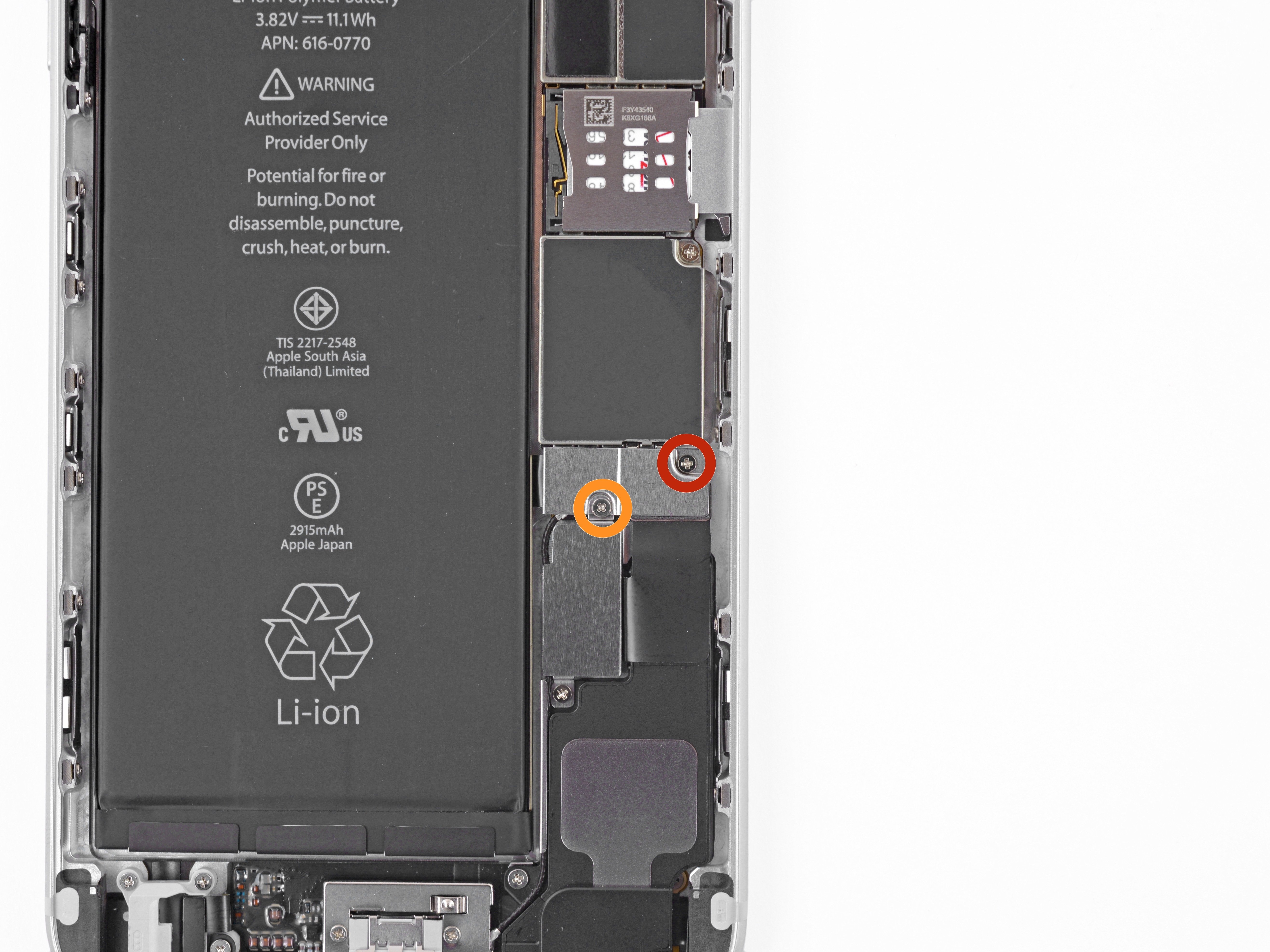
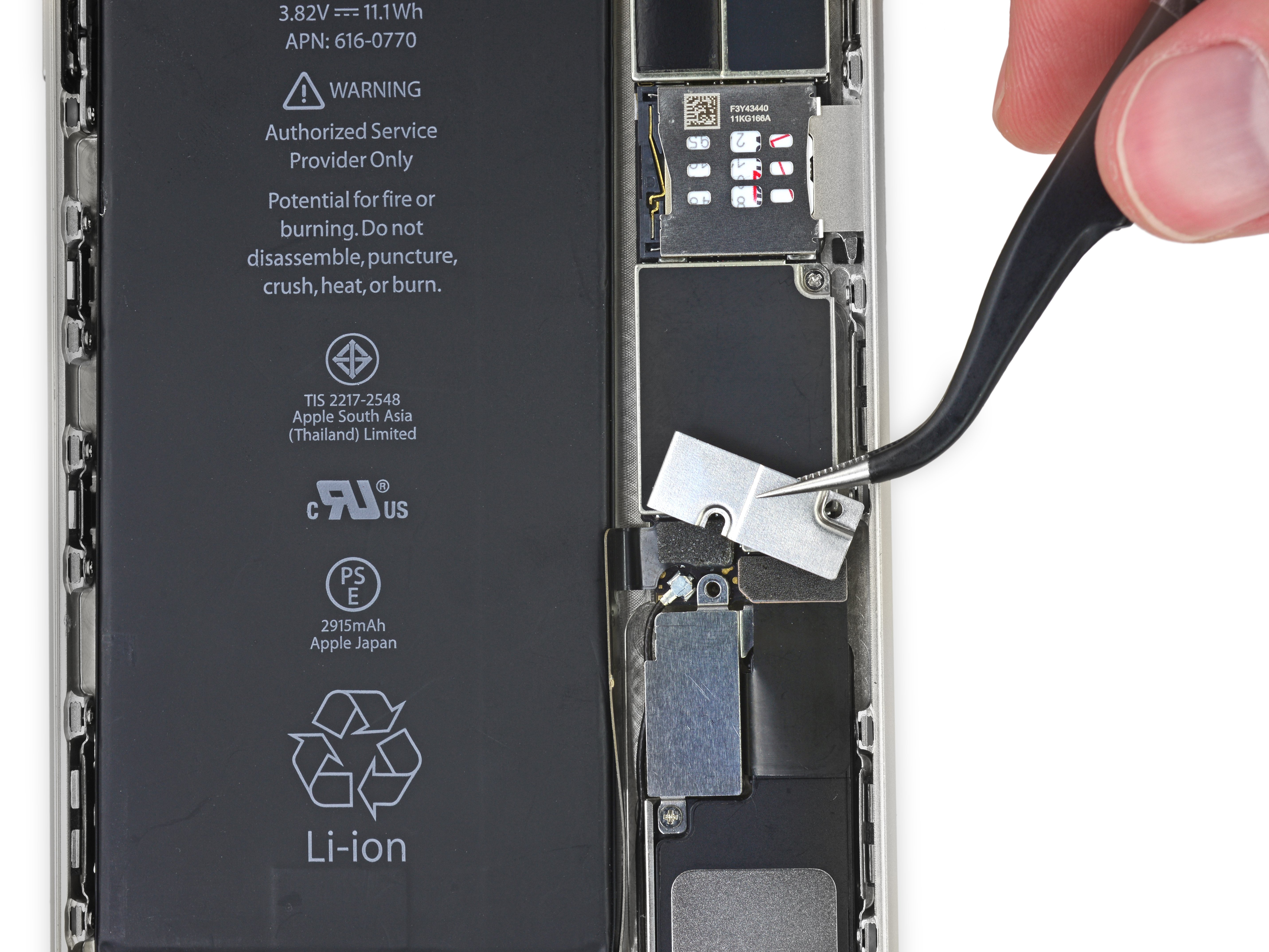
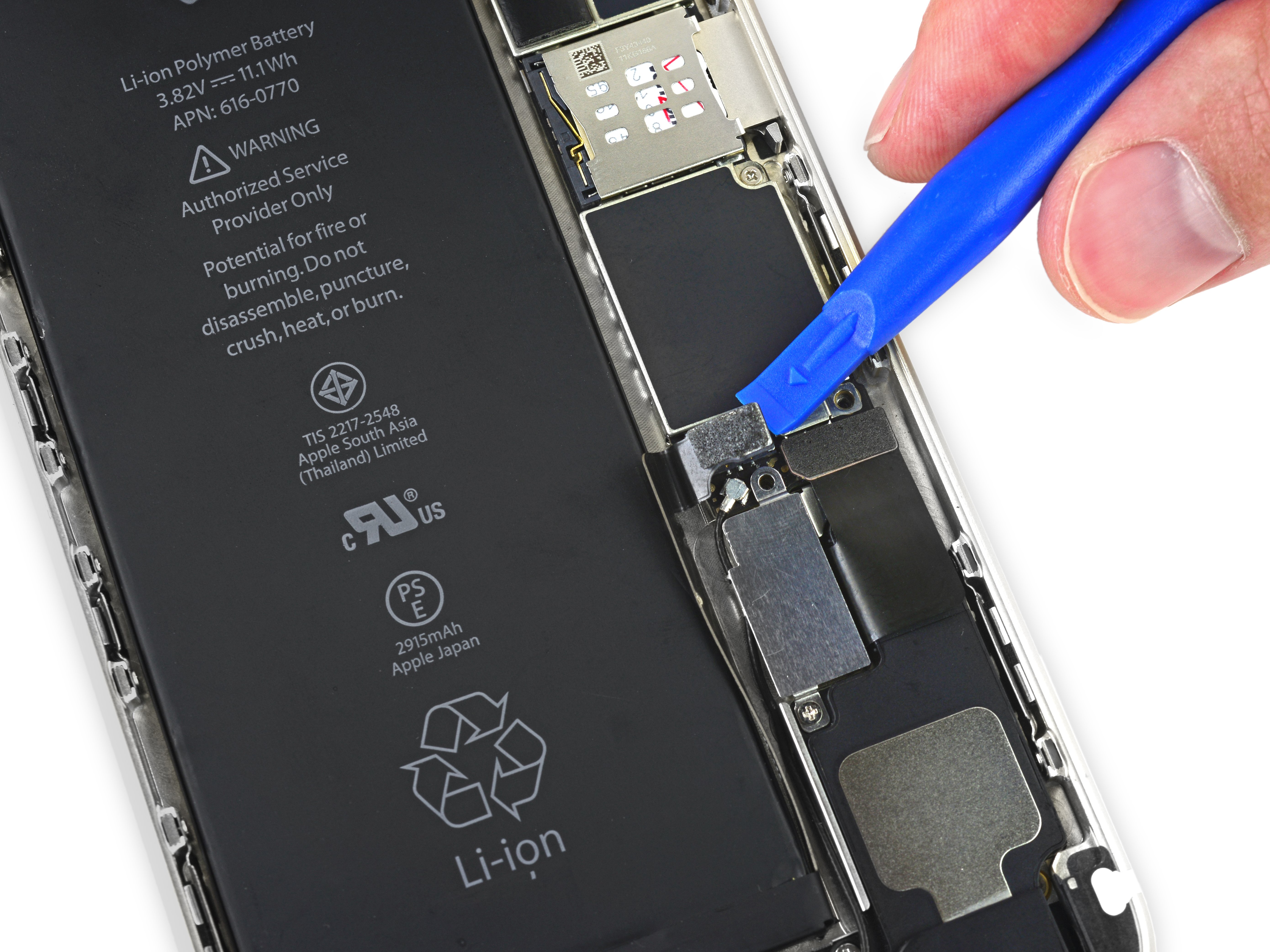
Use a clean fingernail or the edge of an opening tool to gently pry the battery connector up from its socket on the logic board.
Take care to only pry up on the battery connector, and not the socket on the logic board. If you pry up on the logic board socket, you may break the connector entirely.
In the next four steps, take care to pry up only on the cable connectors, and not on their sockets on the logic board.
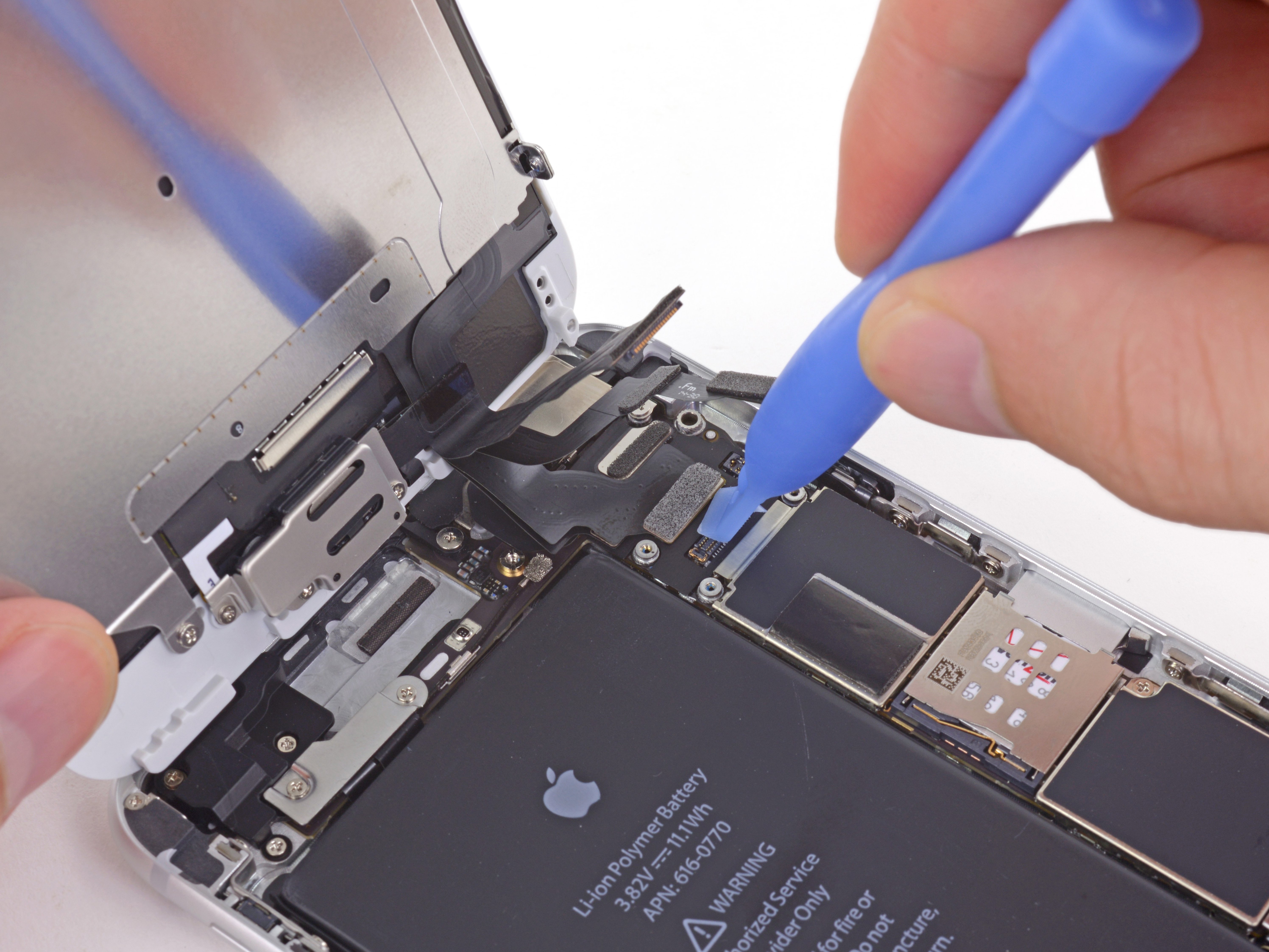
While still supporting the front panel, use a fingernail or the edge of an opening tool to disconnect the front-facing camera and earpiece speaker connector.
Make sure the battery is disconnected before you disconnect or reconnect the cable in this step.
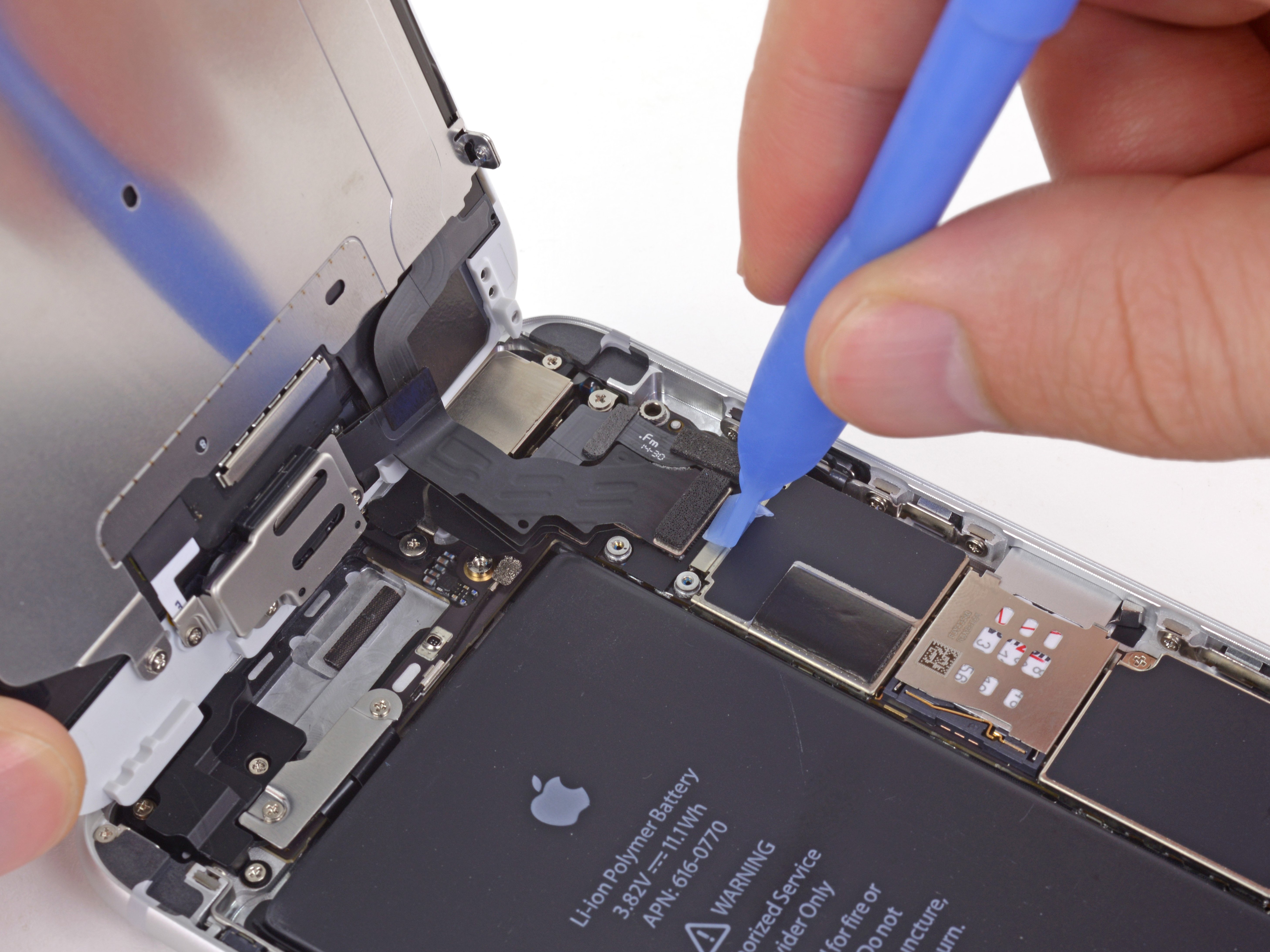
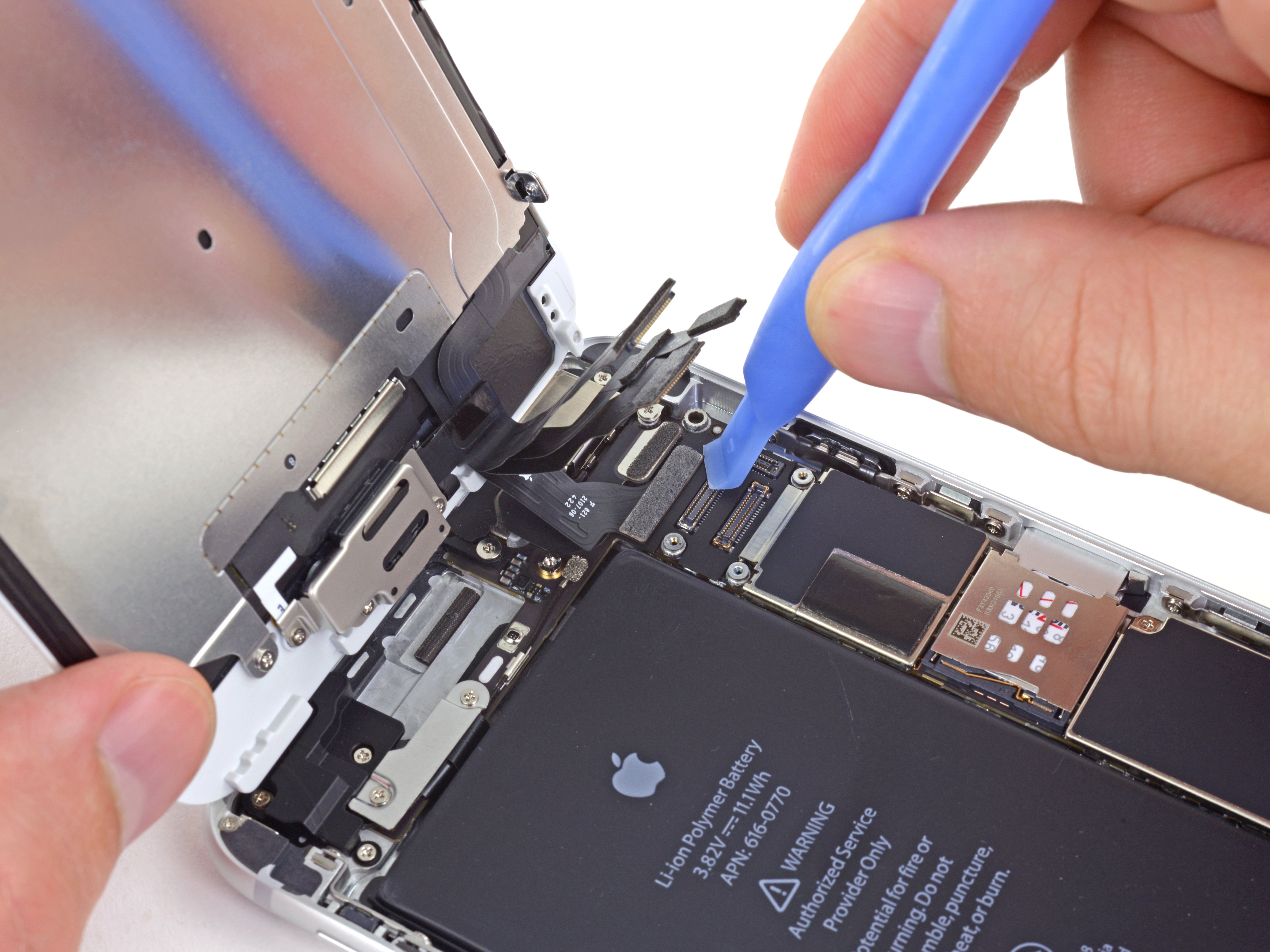
Use a plastic opening tool to disconnect the display data cable connector.
When reassembling your phone, the display data cable may pop off the connector. This can result in white lines or a blank screen when powering your phone back on. If that happens, simply reconnect the cable and power cycle your phone. The best way to power cycle your phone is to disconnect and reconnect the battery connector.
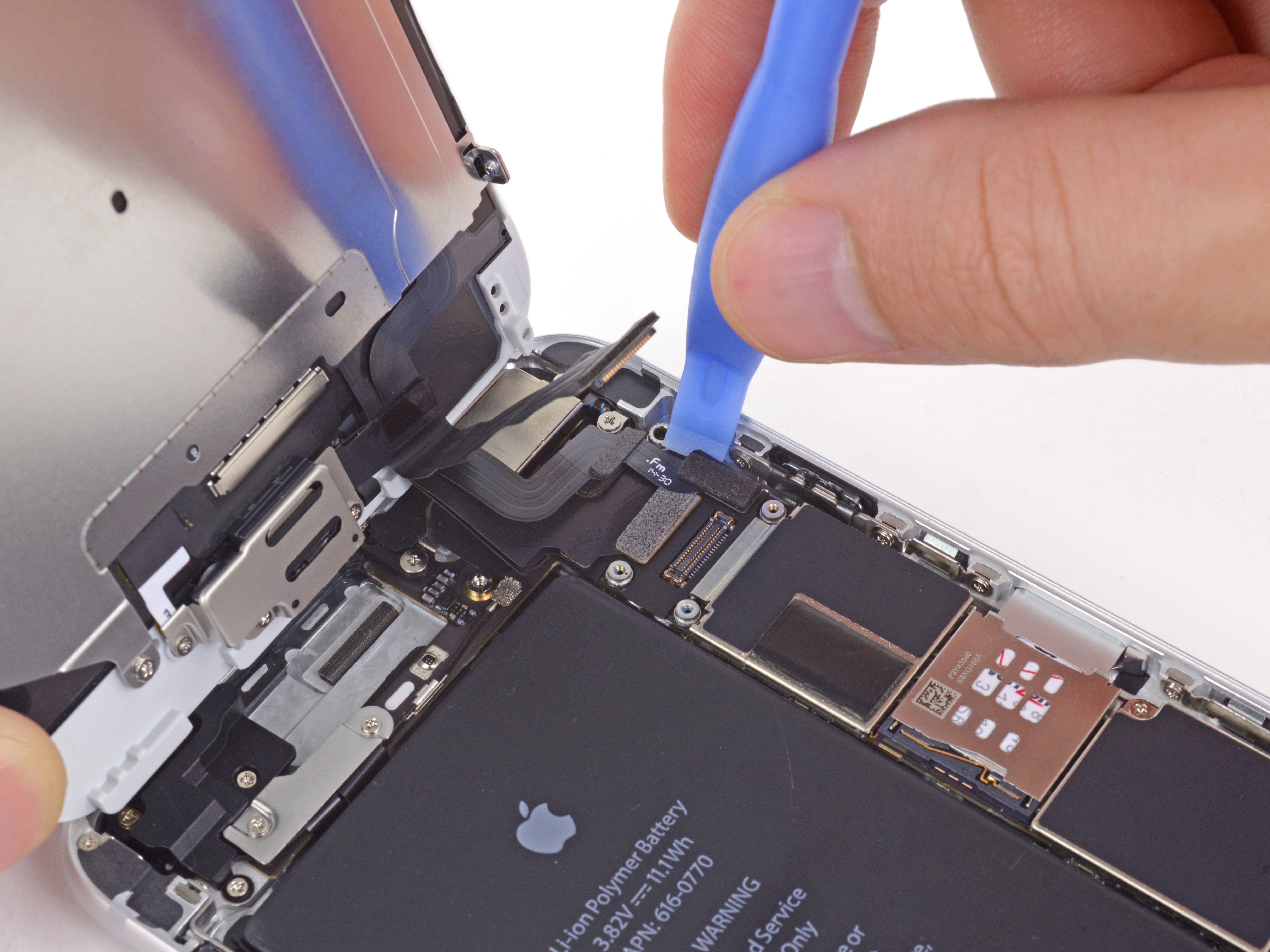
Finally, disconnect the digitizer cable connector.
When reconnecting the digitizer cable, do not press the center of the connector. Press one end of the connector, then press the opposite end. Pressing in the center of the connector can bend the component and cause digitizer damage.
 FIXONIC