FIXONIC
SellSavedMy Fixonic
Official iFixit API visual reference

Acer Iconia A1-830 Rear Facing Camera Replacement

This tiny digital camera is connected to the...

iFixit Library Acer Iconia A1-830 Moderate No estimate Guide 53196
Open the authorised source
Licensed iFixit integration

This attributed iFixit guide is displayed through Fixonic's recorded commercial API permission. iFixit remains the independent source and author of the procedure.

Guide overview

Before you begin

This tiny digital camera is connected to the motherboard via a ribbon cable, which is hiding underneath some tape. You will need steady hands when you use the metal tweezers to remove the tape and the camera.

Step 1

Repair step

  • Prepare your working space. The ideal work space has a flat, level surface that is clean and well lit.
  • Shut down your Acer Iconia A1-830.
  • Remove any cables or exterior covers from your tablet.
  • Place it on your work space, with the screen facing up.
Step 2

Repair step

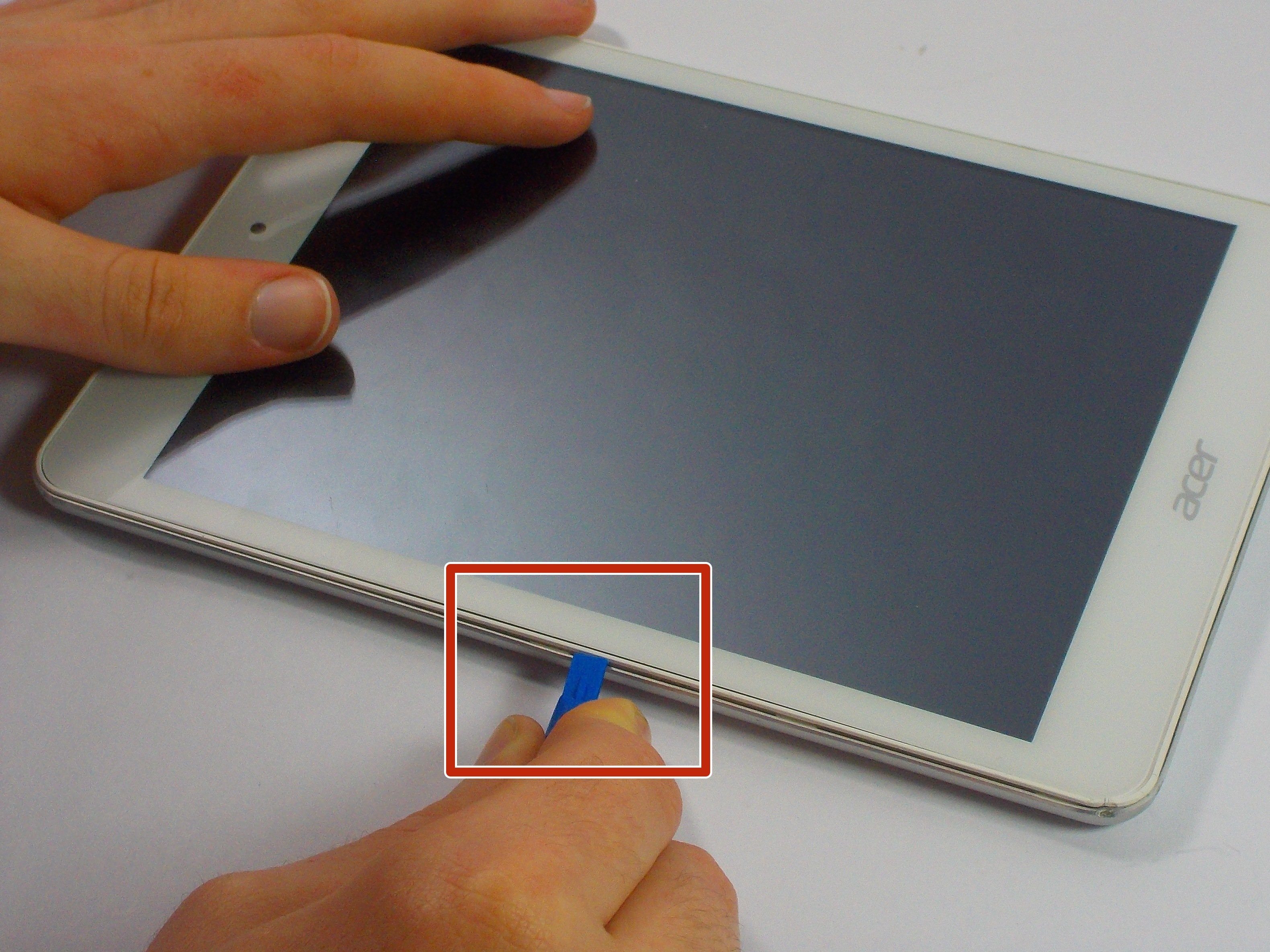
  • Wedge the plastic opening tool into the tiny gap between the white plastic front bezel and the aluminum rear panel.
  • Do not try to pry apart the top edge on the front side near the front-facing camera.
Step 3

Repair step

  • Remove the small clear plastic cover on top of the battery cable with the nylon or metal spudger.
Step 4

Repair step

  • Remove the battery cable by lifting it up with the pointy end of the black nylon spudger.
Step 5

Repair step

  • Un-stick the battery from the metal plate using the black nylon spudger.
  • Be careful not to puncture the battery while removing it.
Step 6

Repair step

  • Remove the piece of black tape covering the rear facing camera ribbon cable connector.
Step 7

Repair step

  • Lift up the small white lever on the the ribbon cable connector with the metal tweezers to remove the ribbon cable.
  • Lift out the rear facing camera from the plastic frame with the metal tweezers.