FIXONIC
SellSavedMy Fixonic
Official iFixit API visual reference

Motorola Lapdock 100 Trackpad Replacement

You will start by following the guide to remove...

iFixit Library Motorola Lapdock 100 Easy 8 minutes Guide 56408
Open the authorised source
Licensed iFixit integration

This attributed iFixit guide is displayed through Fixonic's recorded commercial API permission. iFixit remains the independent source and author of the procedure.

Guide overview

Before you begin

You will start by following the guide to remove the bottom case of the lapdock. After doing this you will remove the screws from the trackpad frame and gain access to the trackpad itself. Then you will unplug the trackpad from the motherboard. Once all of this is done you will be able to remove the trackpad from the lapdock.

Step 1

Repair step

  • To take off the Keyboard there are three tabs at the top of the Keyboard in the locations shown in the picture that you must press and unclip. They are located behind each of the keys that are removed.
  • You do not need to remove any keys to unclip the keyboard. We did this for picture purposes only.
Step 2

Repair step

  • You can use a small metal spudger to depress each tab to avoid scratching the keyboard.
Step 3

Repair step

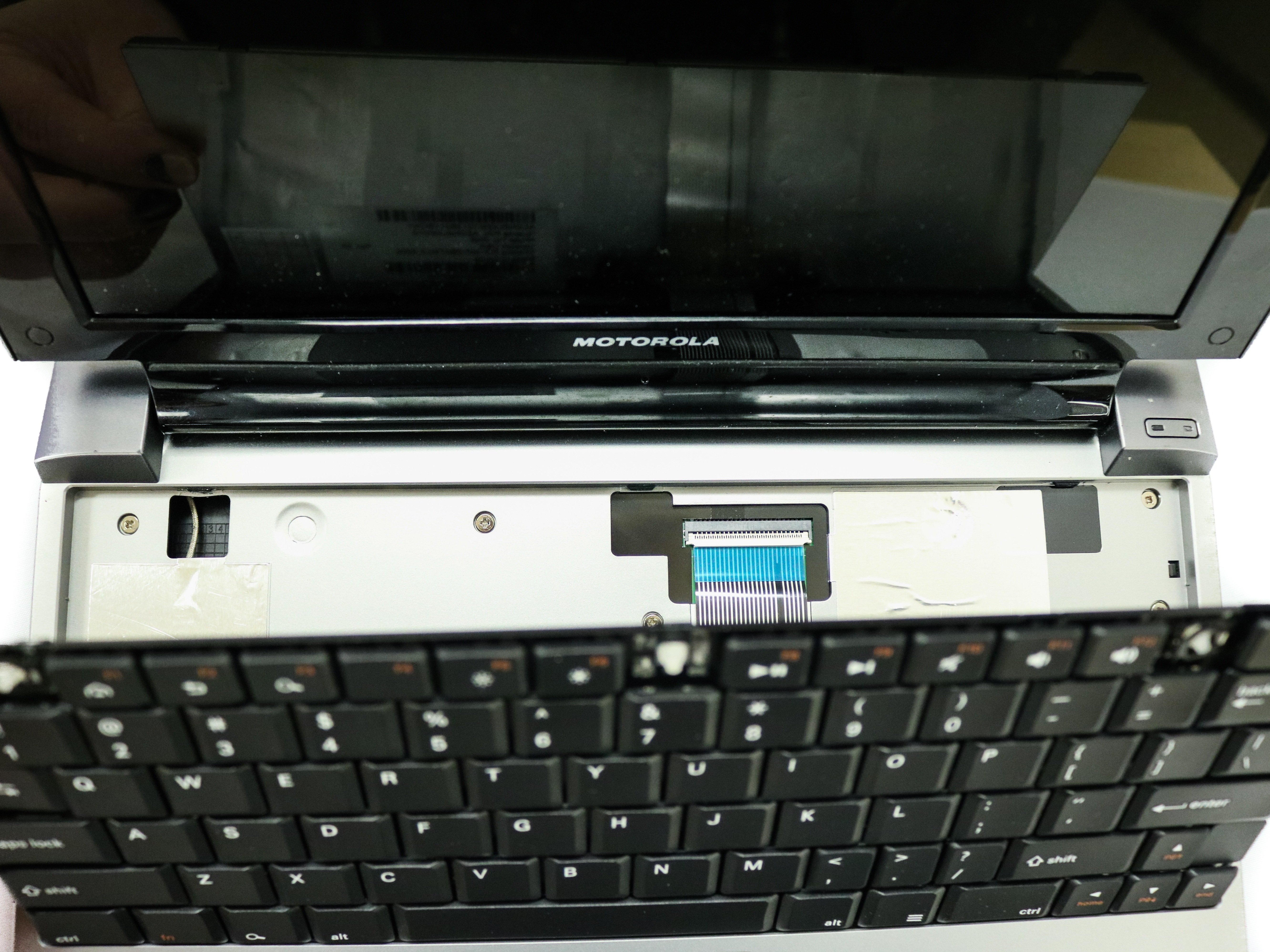
  • Lift up keyboard so that you are able to see the ribbon cable connected to the contact.
Step 4

Repair step

  • Flip up the ZIF connector holding the ribbon cable on the contact as shown in the two pictures and then gently disconnect the ribbon cable.
Step 5

Repair step

  • After we remove the Keyboard, you can clearly see the screws under it. Remove the ten 3mm long phillips head screws.
Step 6

Repair step

  • Flip over the Lapdock and remove the four 3.5mm long phillips head screws from the bottom.
Step 7

Repair step

  • Use a plastic prying tool to take off the bottom case. Make sure that all of the clips are unclipped before trying to remove the case.
Step 8

Repair step

  • Remove the five 1.2mm long screws with the PH0 screwdriver from track pad reinforcement frame.
Step 9

Repair step

  • Unplug track pad from the ribbon cable that is attaching it to the motherboard then use a plastic prying tool to take out the track-pad.