FIXONIC
SellSavedMy Fixonic
Official iFixit API visual reference

Acer Chromebook R11 Battery Replacement

Having battery issues? Here's how to replace...

iFixit Library Acer Chromebook R11 CB5-132T-C1LK Very easy 5 minutes Guide 85481
Open the authorised source
Licensed iFixit integration

This attributed iFixit guide is displayed through Fixonic's recorded commercial API permission. iFixit remains the independent source and author of the procedure.

Guide overview

Before you begin

Having battery issues? Here's how to replace it! To avoid generating static between you and the device, you should wear a rubber bracelet. Not doing so could potentially damage your device.

Step 1

Repair step

  • The back cover of the R11 is held into place using 11 screws.
  • To remove, use a screwdriver appropriate for a JIS 1 screw.
Step 2

Repair step

  • Battery is located in the bottom half of the computer.
  • Unscrew the two screws holding the battery in place. There is one on each side of the battery.
  • To remove, use a screwdriver appropriate for a JIS 1 screw.
Step 3

Repair step

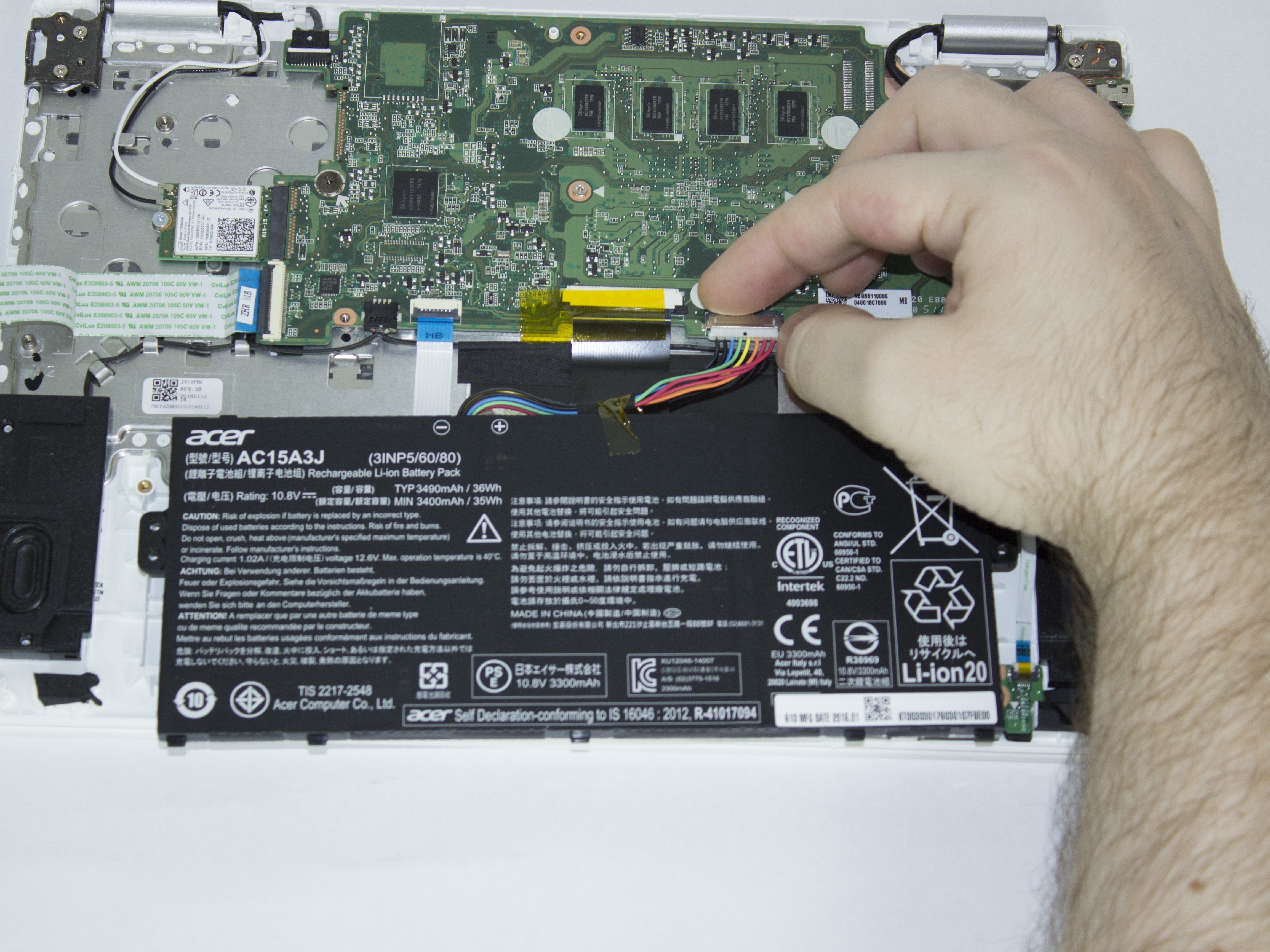
  • Slide out the ribbon that is connecting the battery to the motherboard.
  • There are 7 wires leading to it, and each is a different color of the rainbow.
  • Disconnect the keyboard ribbon located at bottom center of motherboard.
Step 4

Repair step

  • Remove the battery by pulling upwards.