FIXONIC
SellSavedMy Fixonic
Official iFixit API visual reference

ASUS Transformer Book Flip TP500LA Fan Replacement

The fan is responsible for self cooling the...

iFixit Library ASUS Transformer Book Flip TP500LA Easy 15 minutes Guide 88485
Open the authorised source
Licensed iFixit integration

This attributed iFixit guide is displayed through Fixonic's recorded commercial API permission. iFixit remains the independent source and author of the procedure.

Guide overview

Before you begin

The fan is responsible for self cooling the computer during operation. Without a working fan, your computer is prone to overheating and continually shutting down. This guide will help you replace your faulty or broken fan in your ASUS Transformer Book Flip TP500LA.

Step 1

Repair step

  • Remove the ten 10 mm Phillips #0 screws found on the computer's back case.
Step 2

Repair step

  • Slide a heavy-duty spudger between the back case and the computer.
  • Slowly work around the edges to undo the clips to fully separate the back case from the computer.
  • Gently lift off the back case.
Step 3

Repair step

  • Slide a heavy-duty spudger into the ZIF connector and gently flip up the retaining flap to open the connector.
  • Pull the blue tab to remove the ribbon.
Step 4

Repair step

  • Remove the three 5 mm Phillips #0 screws.
  • Remove the single 6 mm Phillips #0 screw.
Step 5

Repair step

  • Use the heavy-duty spudger to pry the white 8-pin connector away from the motherboard.
  • Gently pull the connector away from the motherboard.
  • The black 8-pin connector on the motherboard is very fragile, so be careful when removing the white 8-pin connector.
Step 6

Repair step

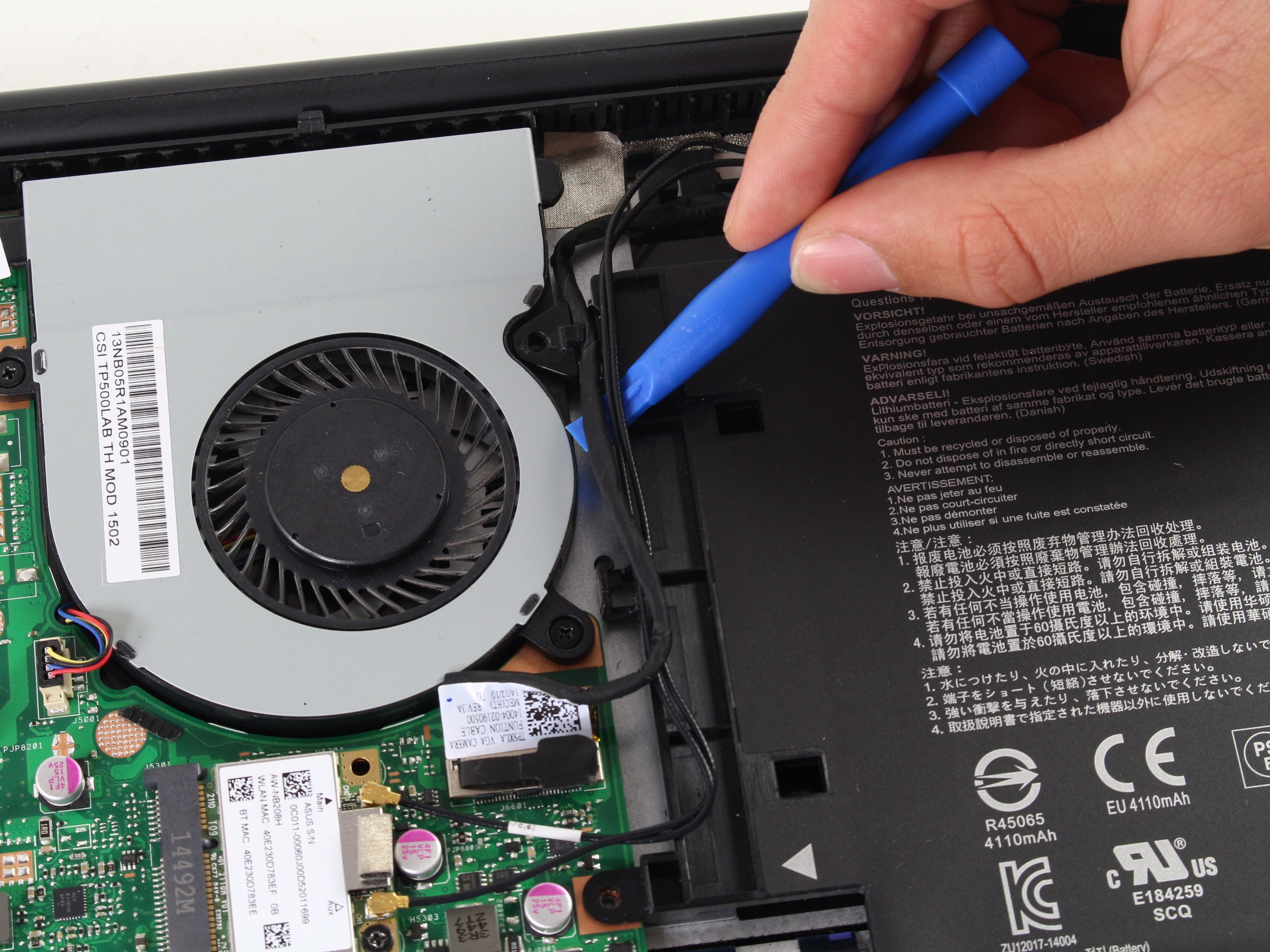
  • Use the blue plastic opening tool to loosen and remove the three black wires from the battery.
  • Slide the battery out from the computer to remove.
Step 7

Repair step

  • Unscrew the six 5 mm Phillips #0 screws.
Step 8

Repair step

  • Grasp the top of the 3-pin connector with tweezers.
  • Wiggle the connector until it loosens itself from the motherboard.
  • Gently lift the connector from the motherboard attachment.
Step 9

Repair step

  • Carefully lift the fan off the motherboard.
  • Attached to the fan is thermal pasting that needs to be reapplied when attaching the fan back to the motherboard. Follow this guide to reapply thermal pasting correctly.