FIXONIC
SellSavedMy Fixonic
Official iFixit API visual reference

Toshiba Tecra M3 Memory Upgrade

Contrary to the instructions I found on another...

iFixit Library Toshiba Tecra M3 Easy 20 minutes Guide 95572
Open the authorised source
Licensed iFixit integration

This attributed iFixit guide is displayed through Fixonic's recorded commercial API permission. iFixit remains the independent source and author of the procedure.

Guide overview

Before you begin

Contrary to the instructions I found on another web site, upgrading the memory on a Toshiba Tecra M3 is very simple. Memory is inexpensive, so there is no excuse not to have the maximum amount of RAM: 2 gigabytes of PC4200 DDR2 533 MHz SDRAM. Your RAM can be faster than this, but the two modules must be the same capacity and clock speed.

Step 1

Remove Battery

  • Turn the laptop upside down, with the battery at the upper edge. While sliding the battery latches, push the battery away from you to slide it out of the laptop.
Step 2

Remove Retaining Screw

  • Once the battery is out, you have access to a small retaining screw at the bottom of the battery compartment. Remove this screw.
Step 3

Remove Upper Keyboard Trim

  • Turn the laptop right side up and open the lid. Carefully pry off the plastic keyboard trim (outlined in yellow). It comes off very easily once you remove the retaining screw (step 2).
Step 4

Remove Keyboard

  • Remove the two screws at the top of the keyboard. After removing the screws, carefully slide the keyboard forward until the plastic fingers on its lower edge are free of the case. Then flip the keyboard toward you, taking care not to damage the ribbon cable connecting it to the laptop.
Step 5

Remove Memory Access Cover

  • A single screw holds a sheet metal memory access cover in place. Remove the screw and take off the cover.
Step 6

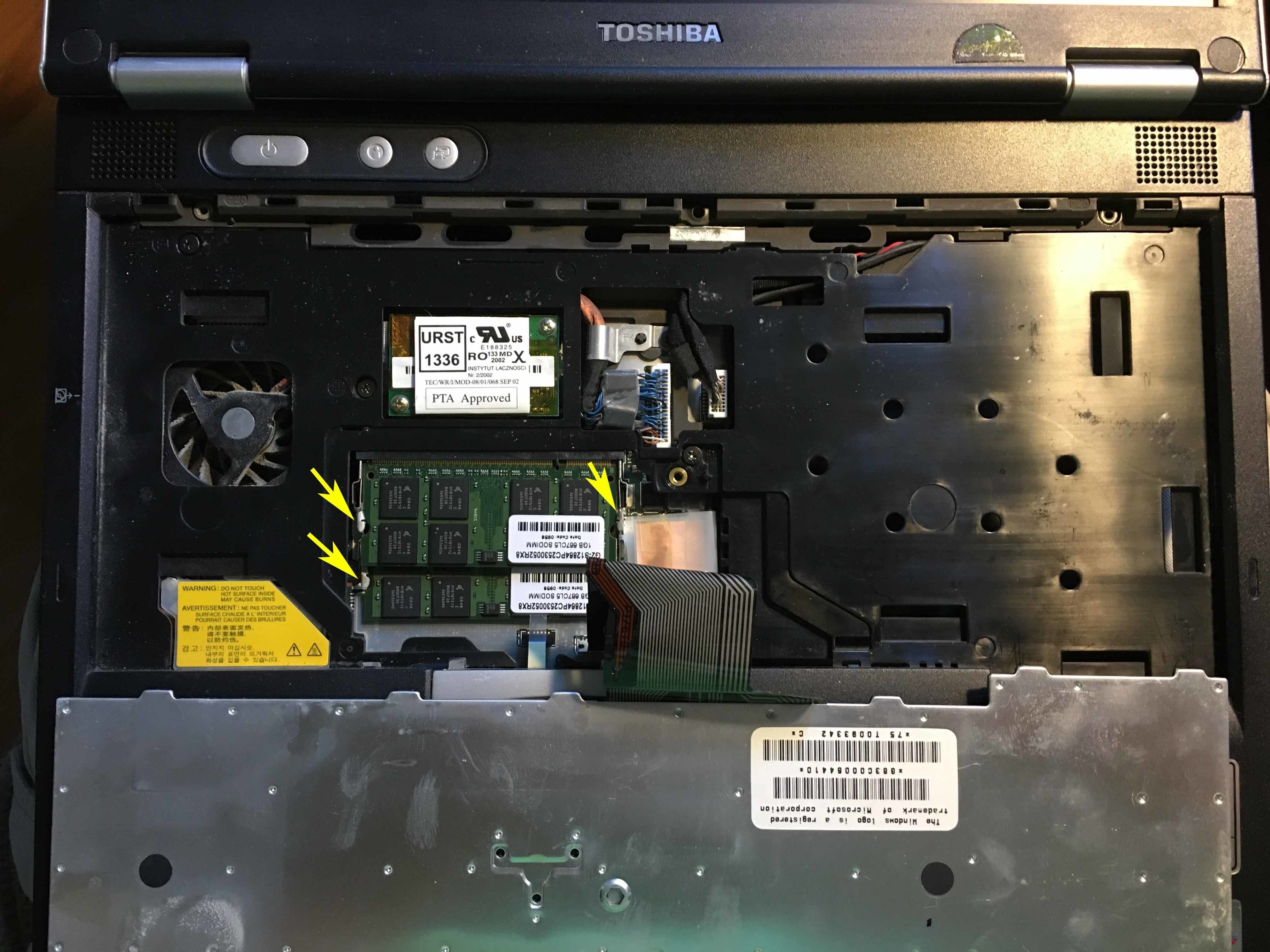
Remove the Old Memory Modules

  • To remove a memory module, gently slide the module's retaining clips toward the outside edges of the laptop. In the photo one of the retaining clips is hidden underneath the keyboard ribbon cable.
Step 7

Insert New Memory Modules

  • Gently insert the new memory modules into the slots where you removed the old memory. Note the slot in each module, which prevents you from inserting the memory module in the wrong orientation.