 FIXONIC
Official iFixit API visual reference
Open the authorised source
How to reapply thermal paste to MacBook Pro 15" Retina Display Mid 2012 CPU and GPU
Attributed iFixit repair guide for MacBook Pro 15" Retina Display Mid 2012.
iFixit Library MacBook Pro 15" Retina Display Mid 2012
Moderate
25 - 30 minutes
Guide 9587
Licensed iFixit integration
This attributed iFixit guide is displayed through Fixonic's recorded commercial API permission. iFixit remains the independent source and author of the procedure.
Repair step
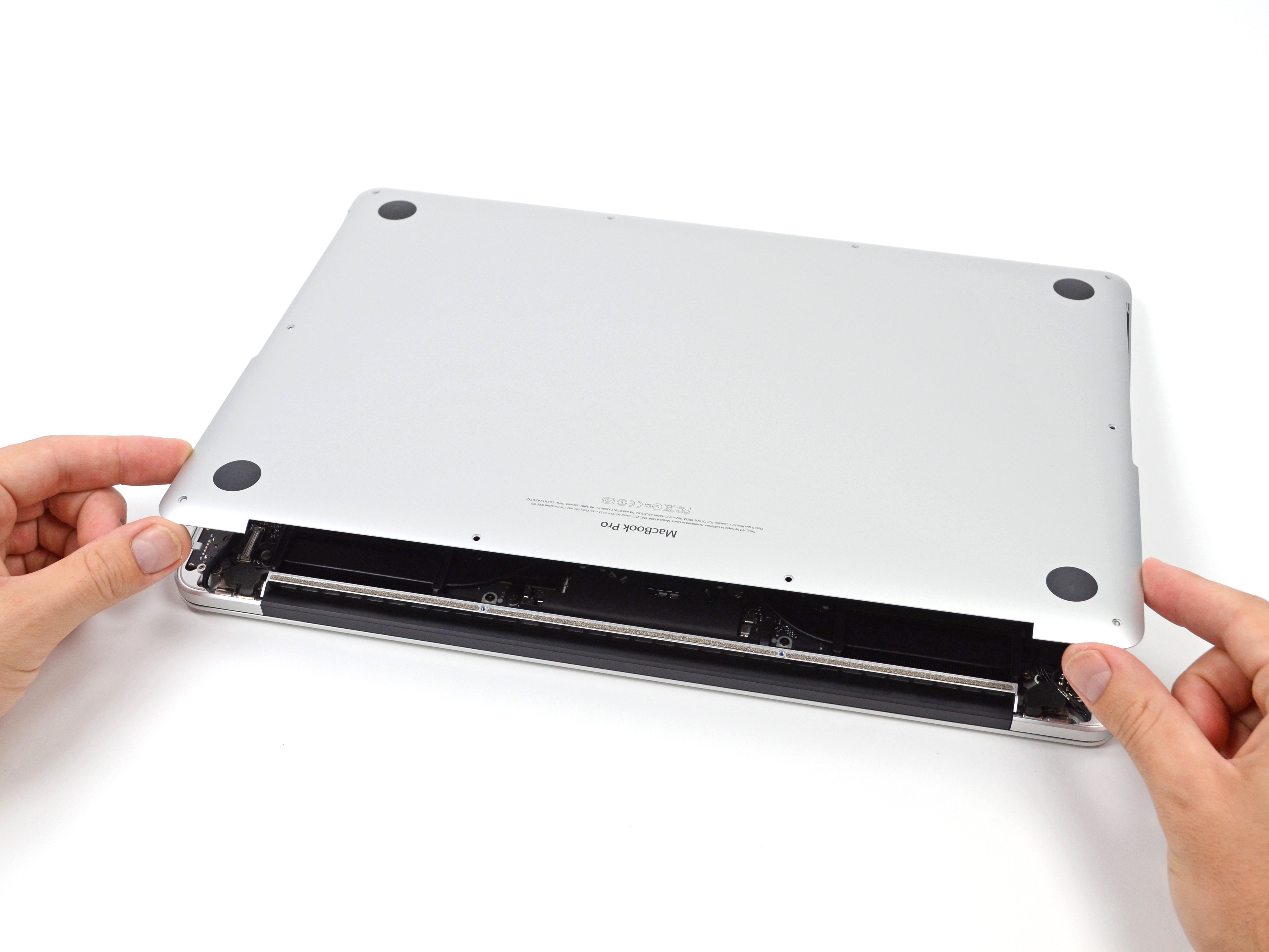
- Lifting from the edge nearest the clutch cover, lift the lower case off the MacBook Pro.
- Set the lower case aside.
Repair step


TOOL USED ON THIS STEP
MacBook Pro and Air 5-Point Pentalobe Screwdriver
Referenced by the iFixit guide
View item
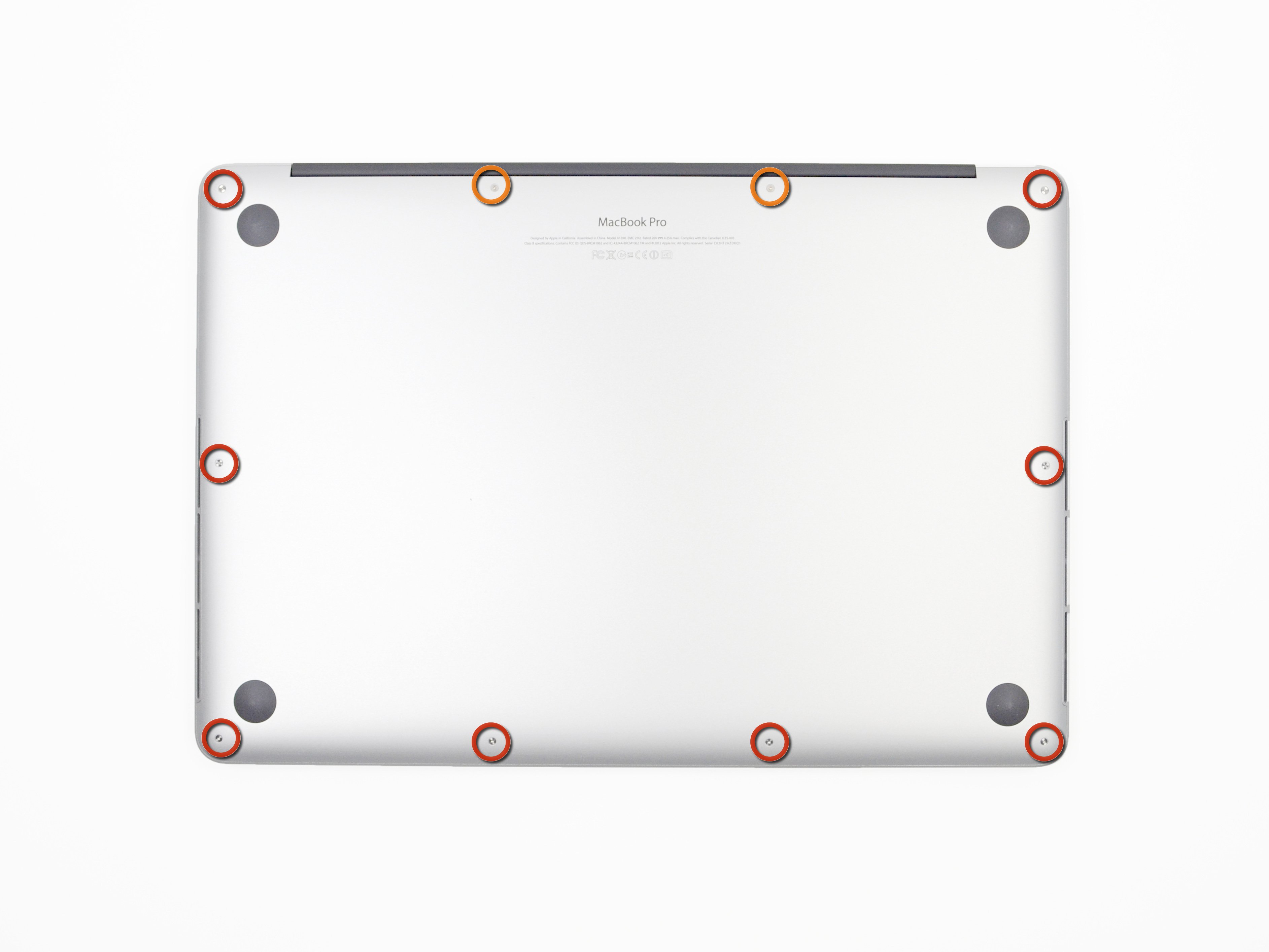
- First, take off the rear panel on the Macbook Pro. You will need to use a screwdriver to remove Apple's pentalobe screws.
- I used paper to make a layout of the screw locations just in case they were different screws; luckily they weren't.
Repair step

TOOL USED ON THIS STEP
MacBook Pro and Air 5-Point Pentalobe Screwdriver
Referenced by the iFixit guide
View item
- Once opened up, you'll see the battery sticker. Peel back the sticker and disconnect the battery cable. See the breakdown review for better pictures on removing the battery cable.
- Luckily, to remove the heatsink, you don't have to remove anything else except for the battery cable and screws holding it down.
- After the battery is disconnected, note the locations of the screws on the heatsink. there are 4 screws around both the CPU and GPU along with a screw at each end of the heatsink
- The screw on one end of the heat sink has a rubber cap. Remove the cap to access the screw.
Repair step

- Remove this caked on thermal paste with the ArctiClean.
- Do the same for the CPU and GPU.
- Note: the black borders around the CPU and GPU seems to be unattached on one side. Don't worry, you didn't break it. Be sure to thoroughly remove the excess cleaning solution from under it by gently blowing it out if necessary. I'm sure it will evaporate in a timely manner otherwise.
Repair step

TOOL USED ON THIS STEP
MacBook Pro and Air 5-Point Pentalobe Screwdriver
Referenced by the iFixit guide
View item
- Re-apply your quality thermal paste to the now shiny clean CPU and GPU. DO NOT use too much. We don't want to overdo it like Apple. A line the size of a grain of rice on both the CPU and GPU should be perfect. **You do not need to apply thermal paste on the heatsink as well - only on the CPU and GPU.
- Re-assemble the MBP, making sure to spread out the paste evenly as you place and screw the heatsink back in. Also remember that the paste will spread as the unit heats up. DO NOT leave air pockets in the paste when covering the processor and GPU.
- I got temps about 10-12C cooler during game usage. Have fun with your cooler MBPr.