FIXONIC
SellSavedMy Fixonic
Official iFixit API visual reference

Alienware 17 R2 Screen Replacement

One of the causes for a blank or pix-elated...

iFixit Library Alienware 17 R2 Moderate No estimate Guide 99333
Open the authorised source
Licensed iFixit integration

This attributed iFixit guide is displayed through Fixonic's recorded commercial API permission. iFixit remains the independent source and author of the procedure.

Guide overview

Before you begin

One of the causes for a blank or pix-elated screen could because it is cracked. In this guide, we will show you how to replace your screen.

Step 1

Repair step

  • Put the laptop on a hard surface.
  • Make sure that the Alienware is not plugged into any power source.
  • First, we need to unplug the battery.
Step 2

Repair step

  • To unplug the battery, turn the computer upside down.
  • Remove the two 4mm screws from the plastic covering protecting the inner part of the laptop.
Step 3

Repair step

  • Gently, pull the cover up and slide it off.
Step 4

Repair step

  • Now, you are going to look for a yellow tag.
  • Unplug the black wire that has the yellow tag.
  • This with successfully disconnect your battery.
Step 5

Repair step

  • Using the plastic opening tool, gently remove the black plastic casing from the LCD screen.
  • Run the opening tool along the inner side of the computer where the screen and the plastic covering meet.
Step 6

Repair step

  • No you will unscrew the 2mm screws on the top and bottom side of the screen.
Step 7

Repair step

  • Tilt the screen forward towards the keyboard.
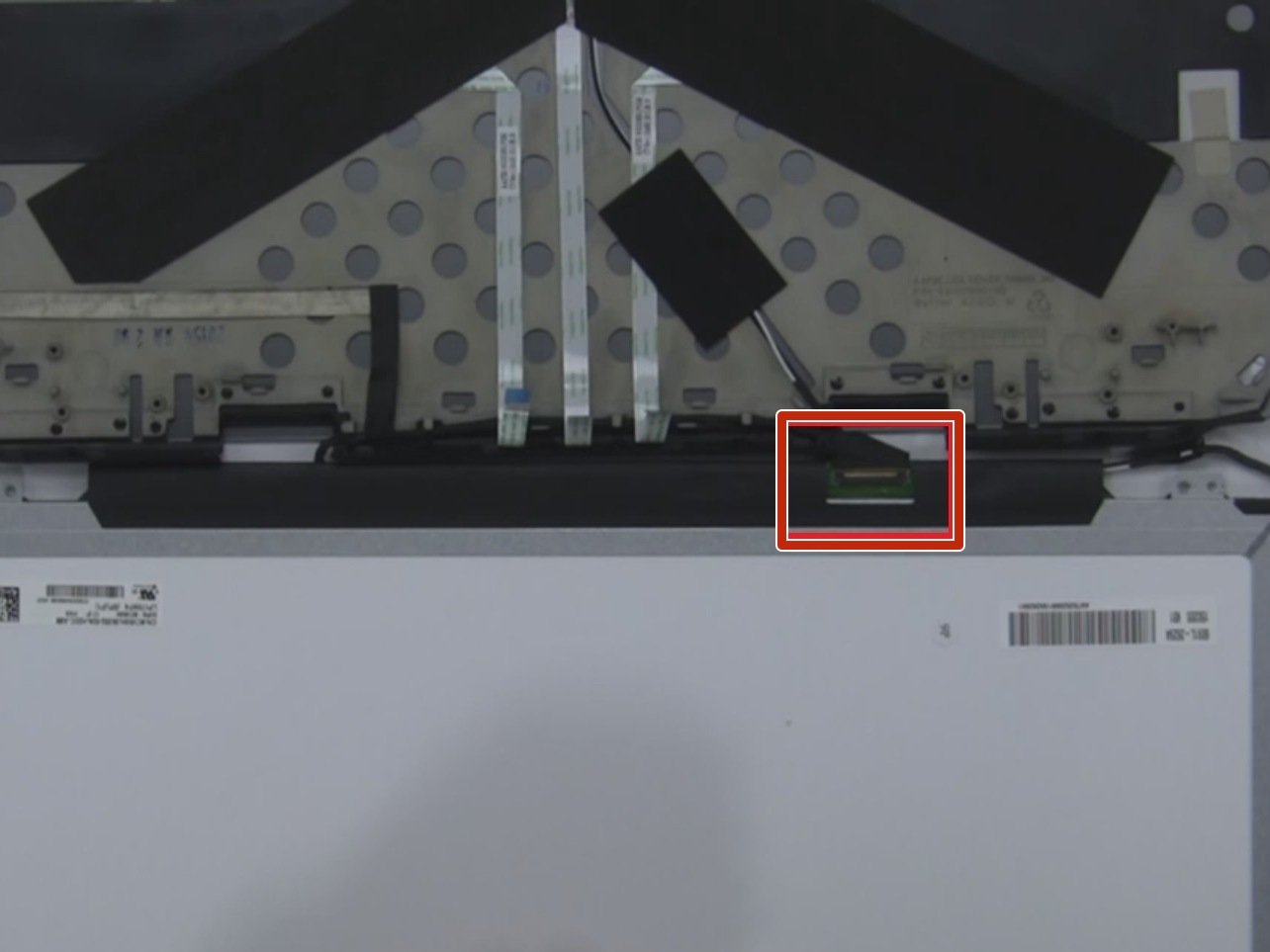
  • Disconnect the plug that is connecting the screen to the main body.
Step 8

Repair step

  • Gently, lift the display away from the laptop.